
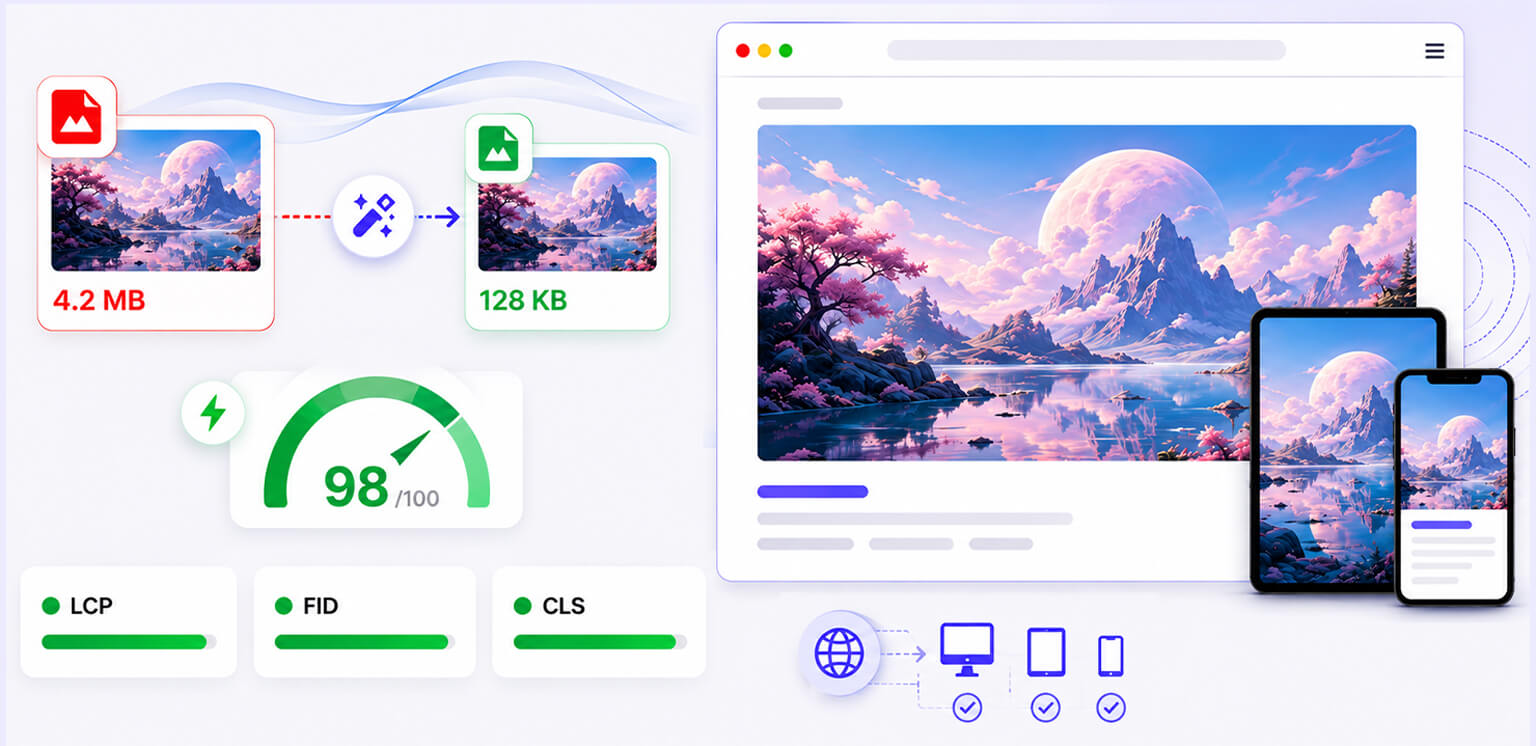
TL;DR: AI-generated images can slow websites when they have large file sizes, excessive dimensions, or poor loading strategies. Resize, compress, use modern formats, and optimize image loading to improve AI-generated images website performance.
AI image generators have made it easier than ever to create hero graphics, product concepts, illustrations, banners, blog visuals, and social media assets. The problem is that the image you generate is rarely the image you should upload directly to your website.
An AI tool might produce a visually impressive 2048px, 4096px, or larger image, even when your website only displays it at a fraction of that size. Multiply that by dozens of images across an image-heavy website. The effect on the performance of AI-generated image websites can become noticeable.
The good news is that the issue is not AI itself. AI image performance depends largely on the final image file, dimensions, format, compression, and delivery method.
AI-Generated Images and Their Effect on Website Performance
AI-generated images can affect website performance in several ways, depending on their file size, dimensions, format, and how they are loaded. The following factors show where these images can add unnecessary page weight or affect important performance metrics.
| Factor | Impact on Your Website |
|---|---|
| Large AI image file size | Increases page weight and can slow image loading. |
| High AI image resolution | Sends more pixels than necessary, especially on mobile devices. |
| Oversized dimensions | Wastes bandwidth when images are displayed much smaller than their actual size. |
| AI images and LCP | A large hero or banner image can delay Largest Contentful Paint (LCP). |
| AI images and CLS | Missing image dimensions can cause layout shifts as images load. |
| AI images and INP | Usually have an indirect effect, especially when image-heavy pages also use heavy scripts or animations. |
| User experience | Slow, blurry, or shifting images can make pages feel less responsive and harder to use. |
| Best approach | Resize, compress, use efficient formats, serve responsive images, and choose the right loading strategy. |
Why AI-Generated Images Can Affect Website Performance
The important distinction is between how an image was created and how it is delivered to the browser.
A traditionally photographed JPEG and an AI-generated JPEG can have completely different performance characteristics. Likewise, an AI-generated WebP that is properly resized may load faster than a poorly optimized photograph.
The main factors are AI-generated image file size, dimensions, resolution, format, quantity, and loading behavior.
For example, imagine an AI-generated hero image exported at 4000 × 2500 pixels and weighing 3.5 MB. If the website displays that image at 1200 × 750 pixels, the browser is downloading considerably more image data than the visitor actually needs.
Google notes that images are often among the largest contributors to overall page size and recommends using image optimization and responsive image techniques to provide a high-quality, fast user experience.
AI Image File Size Matters More Than the Fact That It Was AI-Generated
There is no standard file size for an AI-generated image. The output depends on the generator, resolution, format, quality settings, transparency, and image complexity.
A practical way to think about it is:
More pixels + more visual detail + less compression = larger file
That becomes especially important when a page contains multiple AI-generated visuals. A single large image may not create a noticeable problem. Twenty large images on a product collection page can.
This is why AI-generated image file size should be evaluated before an image goes live rather than assuming that an AI-generated asset is automatically web-ready.
If you routinely work with large batches, compressing images in bulk can be part of the publishing workflow.
AI Image Resolution and Dimensions: Bigger Is Not Always Better
One of the easiest mistakes to make with AI-generated images is uploading the highest-resolution version simply because it looks better when opened locally. But websites have display constraints.
If an image is displayed at around 600 × 400 CSS pixels, serving a 2400 × 1600 version can send substantially more image data than the page requires, depending on the device, pixel density, and image format.
Responsive image techniques allow the browser to choose an appropriate resource based on the device and display conditions. Google and web.dev both recommend responsive images because sending desktop-sized images to smaller screens can waste significant amounts of data.
A simplified implementation looks like this:
<img
  src="product-800.webp"
  srcset="
    product-400.webp 400w,
    product-800.webp 800w,
    product-1200.webp 1200w
  "
  sizes="(max-width: 600px) 400px, 800px"
  width="800"
  height="600"
  alt="AI-generated product illustration">
The browser can select a more appropriate file instead of downloading the largest version for every visitor. For ecommerce sites, this becomes particularly important across product grids, category pages, and mobile shopping experiences.
How AI-Generated Images Affect Core Web Vitals
AI-generated images can affect Core Web Vitals in different ways. The clearest connections are with LCP and CLS, while any effect on INP is usually indirect.
AI Images and LCP
LCP is usually the most important performance consideration for large AI-generated images.
If an AI-generated hero image is the largest visible element on the page, it can become the LCP element. The larger and slower that image is to download and render, the longer visitors may wait before the main content appears.
Google recommends an LCP of 2.5 seconds or less for a good user experience. That means an AI-generated hero image should receive special treatment.
Avoid lazy-loading the LCP image. Instead, make it discoverable in the initial HTML and consider appropriate priority hints when justified. web.dev specifically warns that lazy-loading an LCP image can introduce unnecessary loading delay.
For example:
<img
  src="/images/hero.webp"
  width="1200"
  height="700"
  fetchpriority="high"
  alt="AI-generated illustration of an online shopping experience">
Preloading can also help in specific situations, particularly when the browser would otherwise discover an important image late. But excessive preloading can create bandwidth competition, so it should not be applied indiscriminately.
AI Images and CLS
CLS measures visual stability rather than image download speed.
An AI image can contribute to CLS when the browser does not know how much space to reserve before the image loads. For example, this is risky:
<img src="/images/banner.webp" alt="AI-generated banner">Adding explicit dimensions gives the browser information about the image’s expected space:
<img
  src="/images/banner.webp"
  width="1200"
  height="600"
  alt="AI-generated banner">
The goal is simple: reserve the image’s space before the image arrives.
This is particularly important for AI-generated banners, product images, cards, and content illustrations that load asynchronously.
AI Images and INP
INP measures how quickly a page responds visually after user interaction. An image file does not normally make INP worse simply because it is large.
However, AI image-heavy pages can indirectly affect interactivity when large assets are combined with heavy JavaScript, image-processing scripts, carousels, animation libraries, or client-side rendering.
In other words, do not assume every poor INP score is an image problem. Check the actual causes in your performance data.
How AI-Generated Images Affect User Experience
The effect of AI-generated images on user experience is not limited to loading speed. Visitors also notice whether images look clear, appear at the right time, stay in place as the page loads, and fit naturally into the page.
A poorly optimized AI-generated image can create several problems:
- blurry images caused by excessive compression
- stretched or distorted visuals
- images that appear much later than surrounding content
- layout movement while images load
- oversized images consuming mobile data
- too many visual elements competing for attention
The goal is not simply to make an AI-generated image smaller. It is to deliver the right image, at the right size, with enough quality for its purpose.
This matters because images often contribute to the first impression of a page. A large hero image that loads slowly can make the entire page feel slow, while a product image that looks blurry can make an otherwise fast ecommerce page feel lower quality.
Google notes that images are often a major contributor to page size, so optimizing them can help deliver a better balance between visual quality and performance.
For ecommerce, this balance matters even more. Product imagery helps people evaluate what they are buying, so aggressive compression that makes an AI-generated product visual look blurry can undermine the benefit of having optimized files in the first place.
Image optimization can increase conversion rates because performance and visual quality both contribute to the shopping experience.
How to Optimize AI-Generated Images for Website Performance
The best workflow is to treat every AI-generated asset as an original source file, not a finished web asset.
1. Resize Before Uploading
Start with the actual display dimensions. If your content area is 900 pixels wide, there is usually little reason to upload a 4000-pixel-wide image for that placement.
For responsive layouts, create multiple versions rather than relying on one oversized image.
2. Compress Without Destroying Visual Quality
Compression reduces unnecessary image data while keeping the image visually useful.
The right level depends on the image. Illustrations with large flat areas may compress differently from detailed AI-generated artwork containing gradients, textures, and fine details.
If a compressed image looks noticeably blurry, revisit the quality settings rather than simply accepting the smallest possible file.
3. Choose an Appropriate Image Format
WebP and AVIF can provide efficient image delivery compared with older formats in many use cases. The right choice depends on browser support, image characteristics, workflow, and fallback requirements.
The important point is not to convert every image blindly. Test the resulting file size and visual quality.
4. Use Responsive Images
Serving the same large AI-generated image to a phone and desktop wastes bandwidth. Use srcset and sizes, or an image CDN that can generate appropriate dimensions dynamically.
This approach can reduce unnecessary bytes and improve loading performance, particularly on mobile connections.
5. Lazy-Load Images Below the Fold
AI-generated images below the initial viewport do not necessarily need to compete with critical page resources.
Lazy loading can reduce unnecessary downloads and network contention. However, web.dev’s research-based guidance emphasizes that lazy loading should be used selectively: aggressively lazy-loading images in the initial viewport can hurt performance, while lazy-loading images farther down the page can reduce unnecessary bytes.
For ecommerce sites, this is especially relevant to product grids and long category pages. Lazy-loading images for ecommerce provides additional context on where it makes sense.
6. Optimize the Images That Matter Most
Do not spend equal effort on every image. Start with:
- The largest above-the-fold image
- Images contributing to LCP
- Large product or category images
- Repeated images across templates
- Images responsible for excessive page weight
You can use PageSpeed Insights and Chrome DevTools to identify which resources are actually affecting performance rather than optimizing based on file size alone.
For troubleshooting, common image issues in PageSpeed Insights cover several problems that commonly appear in performance audits.
A Practical AI Image Optimization Workflow
A simple publishing workflow can prevent most AI image performance problems:
Generate → Resize → Compress → Convert → Add dimensions → Choose loading strategy → Test
For example, suppose an AI generator produces a 3000 × 2000 PNG at 4 MB. You might resize it to 1200 × 800, convert it to WebP, compress it to a visually acceptable quality level, and deliver smaller variants for mobile.
The exact final file size will depend on the image, but the principle is consistent: do not send more pixels or bytes than the visitor needs. For large ecommerce catalogs, the same logic needs to work at scale. Resources such as bulk optimizing thousands of product images are especially relevant when AI-generated product visuals become part of a larger content pipeline.
Common AI-Generated Image Performance Mistakes
Uploading AI Images at Maximum Resolution
The highest-resolution output is useful as a source file, not necessarily as a website asset.
Using PNG for Every AI Image
PNG can be appropriate for transparency and certain graphics, but it is not automatically the best format for every photographic or detailed visual.
Lazy-Loading the Hero Image
This can delay the LCP resource. Critical images should be discoverable and prioritized appropriately.
Ignoring Image Dimensions
Missing dimensions can cause layout instability when the browser cannot reserve space before the image loads.
Optimizing Only for Lighthouse Scores
A high lab score does not automatically mean every visitor has a fast experience. Google recommends looking at real-world Core Web Vitals and overall page experience rather than chasing a perfect score in isolation.
How to Check Whether AI Images Are Slowing Your Website
Start with PageSpeed Insights and look at the actual performance opportunities. If an AI-generated image appears as the LCP element, investigate its resource size, discovery time, priority, dimensions, and format.
Then check whether other images are unnecessarily loaded during the initial page view.
For a broader audit, compare your image resources against the actual rendered dimensions. An image that is 2500 pixels wide but displayed at 500 pixels is an obvious candidate for resizing.
You can also use a dedicated workflow to find oversized images before they become recurring performance problems.
And if images are already optimized but your PageSpeed score remains poor, remember that images are only one part of the page. JavaScript, CSS, fonts, third-party scripts, server response time, and rendering behavior can all contribute to performance.
Conclusion
AI-generated images can make websites more engaging, but they also make it easier to publish unnecessarily large visual assets. The key to good website performance with AI-generated images is not avoiding AI imagery; it is controlling what reaches the browser.
Resize images to their actual use cases, compress them carefully, select efficient formats, provide responsive variants, reserve layout space, and give priority to critical images. Then measure the results using real performance data.
When those practices become part of the publishing workflow, AI images can deliver strong visual quality without unnecessarily compromising website speed, Core Web Vitals, or the overall user experience.
Frequently Asked Questions
Do AI-generated images slow down websites?
What is a good file size for an AI-generated website image?
Can AI-generated images affect Core Web Vitals?
Should AI-generated images be WebP or AVIF?
Should I lazy-load AI-generated images?
Does AI image resolution affect website speed?
21 August, 2026
Leave a Comment
Ishan Makkar
He is a web performance specialist focused on image optimization and site speed. As the founder of Image Optimizer Pro, he helps businesses reduce image load times and improve Core Web Vitals. His work centers on delivering faster websites, better user experience, and measurable SEO gains without complex development.