
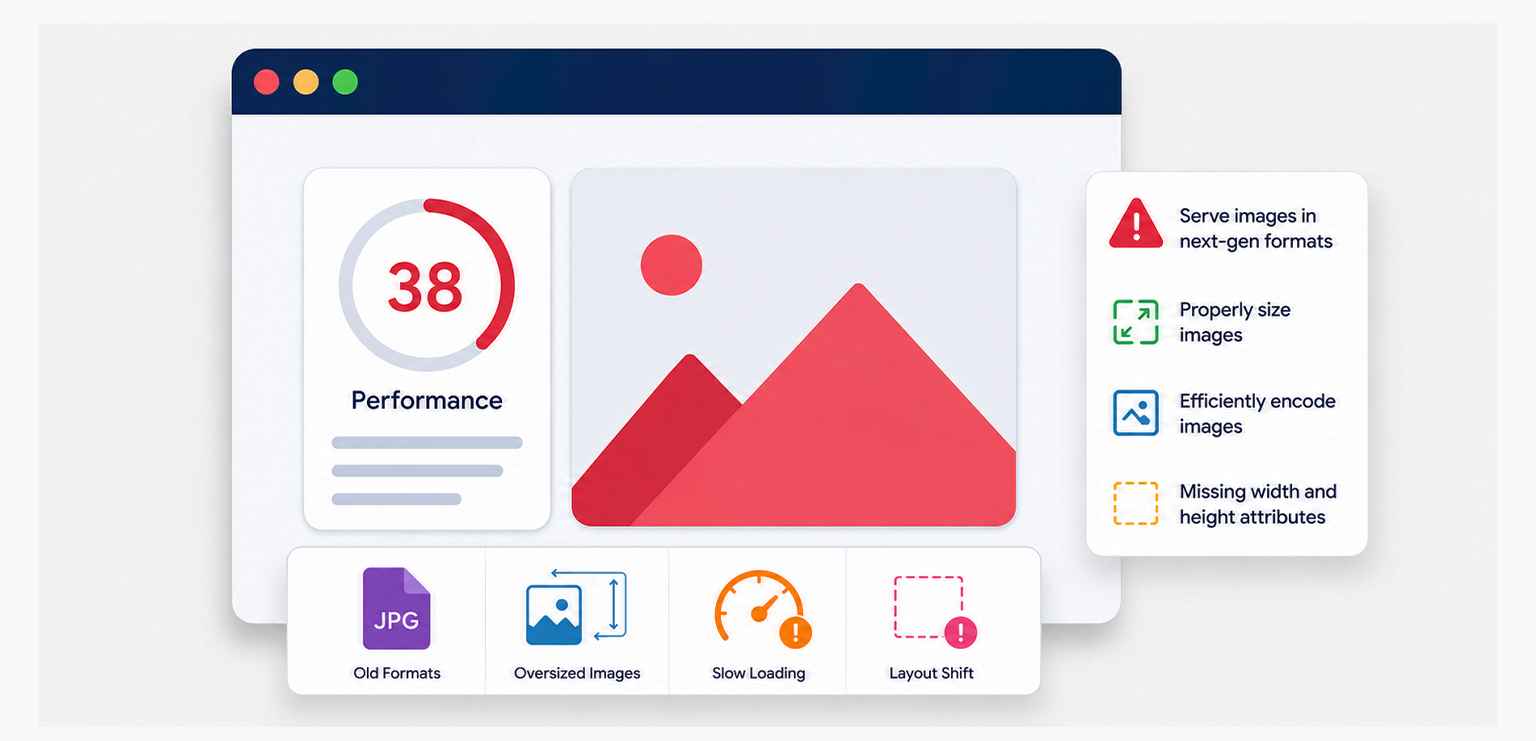
TL;DR: Many PageSpeed Insights performance issues are image-related. Oversized files, improperly sized images, missing next-gen formats, layout shifts, and poor loading strategies can slow pages and hurt Core Web Vitals. Understanding these warnings and fixing them correctly can significantly improve user experience, page speed, and search visibility.
Images are often the largest assets on a webpage, which means they have a major influence on how quickly a page loads and how users experience your site. While high-quality visuals can improve engagement, improperly optimized images can significantly slow down performance, especially on mobile devices and slower networks.
As a result, many of the common image issues in Google PageSpeed Insights are directly related to how images are compressed, sized, formatted, and loaded. Understanding these warnings and knowing how to fix them is essential for improving Core Web Vitals, page speed, and overall website performance.
Quick Reference: PageSpeed Insights Image Issues and Fixes
| PageSpeed Insights Image Issue | What It Means | Recommended Fix |
|---|---|---|
| Serve images in next-gen formats | Using older image formats | Convert to WebP or AVIF |
| Properly size images | Images are larger than needed | Serve responsive image sizes |
| Efficiently encode images | Images are not compressed enough | Compress and optimize images |
| Image elements do not have explicit width and height | Browsers can’t reserve image space | Add dimensions or aspect ratio |
| Defer offscreen images | Below-the-fold images load too early | Use lazy loading |
| Largest Contentful Paint image issues | Hero image loads too slowly | Compress, preload, and prioritize it |
| Excessive image payload | Total image weight is too high | Reduce image sizes and quantity |
Why Google PageSpeed Insights Flags Image Issues
Google PageSpeed Insights flags image issues because images are often among the largest and most resource-intensive assets on a webpage. When images are too large, poorly compressed, improperly sized, or loaded inefficiently, they can slow down rendering, increase page weight, and negatively affect user experience.
To identify these performance issues, PageSpeed Insights analyzes how images are delivered, displayed, and loaded across a page. Many of these image-related warnings are directly connected to Core Web Vitals, loading speed, and user experience.
Understanding why PageSpeed Insights reports these image warnings makes it easier to diagnose performance problems and apply the right optimization techniques to improve page speed and Core Web Vitals.
How Google PageSpeed Insights Detects Image Performance Problems
PageSpeed Insights combines real-world Chrome User Experience Report (CrUX) data with Lighthouse audits to identify performance issues.
When evaluating images, Lighthouse looks for:
- Opportunities to reduce image file sizes
- Modern image formats
- Responsive image delivery
- Efficient loading behavior
- Layout stability
- Largest Contentful Paint (LCP) optimization
Many of the warnings users see under “Opportunities” and “Diagnostics” are directly related to image delivery and rendering.
What Are the Most Common Image Issues Found in Google PageSpeed Insights?
The most common image issues found in Google PageSpeed Insights include improperly sized images, inefficient image encoding, missing width and height attributes, excessive image payloads, deferred offscreen images, outdated image formats, and unoptimized Largest Contentful Paint images. These issues can slow page speed and negatively impact Core Web Vitals.
| PageSpeed Warning | Impact |
|---|---|
| Serve images in next-gen formats | Large files |
| Properly size images | Wasted bytes |
| Efficiently encode images | Poor compression |
| Image elements do not have explicit width and height | CLS |
| Defer offscreen images | Slow loading |
| LCP image issues | Poor LCP |
| Excessive image payload | Heavy pages |
1. Serve Images in Next-Gen Formats
The “Serve images in next-gen formats” warning is one of the most common PageSpeed Insights image optimization recommendations. Google recommends serving modern formats such as:
- WebP
- AVIF
These formats typically provide substantially better compression than traditional JPEG and PNG files while maintaining visual quality.
Lighthouse identifies images that could achieve meaningful file-size savings if converted to WebP or AVIF, and estimates the potential reduction in bytes transferred.
Why It Matters:
Smaller images:
- Download faster
- Reduce bandwidth consumption
- Improve mobile performance
- Help improve Largest Contentful Paint (LCP)
In many cases, WebP images are 25–34% smaller than equivalent JPEGs. AVIF often achieves better compression than WebP, but encoding times can be higher, and browser support should still be verified for older environments.
How to Fix It
Use modern image formats whenever possible:
<picture>
    <source srcset="hero.avif" type="image/avif">
    <source srcset="hero.webp" type="image/webp">
    <img src="hero.jpg" alt="Hero Image" width="1200" height="800">
</picture>
Many CMS platforms, CDNs, and image optimization services can automatically generate and serve modern formats.
2. Properly Size Images
Another frequent PageSpeed Insights image issue warning appears when a large image is displayed in a much smaller container.
For example
| Actual Image Size | Displayed Size |
|---|---|
| 2400px × 1600px | 400px × 267px |
In this scenario, users download far more image data than necessary.
Why It Matters
Serving oversized images:
- Wastes bandwidth
- Increases loading time
- Slows mobile performance
- Delays rendering
How to Fix It
Create responsive image variants and use the srcset attribute:
<img
    src="image-800.webp"
    srcset="
        image-400.webp 400w,
        image-800.webp 800w,
        image-1200.webp 1200w"
    sizes="(max-width: 768px) 100vw, 800px"
    alt="Example Image">
This allows browsers to download only the image size required for the user’s device.
3. Efficiently Encode Images
PageSpeed Insights can identify images that could be compressed further without noticeable visual quality loss. This often occurs when:
- JPEG quality settings are too high
- PNG files contain unnecessary metadata
- Images are exported directly from design software
Why It Matters
Even small file-size reductions across dozens of images can significantly improve page weight.
How to Fix It
Before uploading:
- Compress images using modern optimization tools
- Remove unnecessary metadata
- Use lossy compression where appropriate
- Test the visual quality after compression
Tools such as Image Optimizer Pro can automatically compress images, remove unnecessary metadata, and reduce file sizes while preserving visual quality, making it easier to address PageSpeed Insights compression recommendations.
4. Defer offscreen images
The “Defer Offscreen Images” warning appears when images below the fold load immediately instead of waiting until users scroll near them. Since these images are not visible during the initial page load, loading them upfront can consume unnecessary bandwidth and browser resources.
Why It Matters
Loading offscreen images too early can increase page weight, slow initial rendering, and delay the loading of content users see first.
How to Fix It
How to Fix It
- Apply lazy loading to the below-the-fold images
- Prioritize above-the-fold and LCP images
- Avoid lazy loading critical images
- Use responsive image delivery
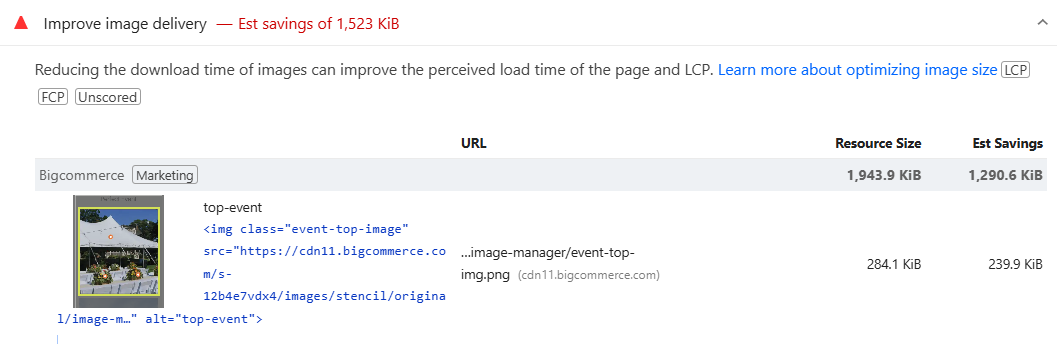
This helps reduce unnecessary network requests and improves initial page load performance.
5. Largest Contentful Paint (LCP) Image Issues
Many websites unintentionally delay their most important image. Since the Largest Contentful Paint element is often an image, poor loading behavior can significantly affect Core Web Vitals.
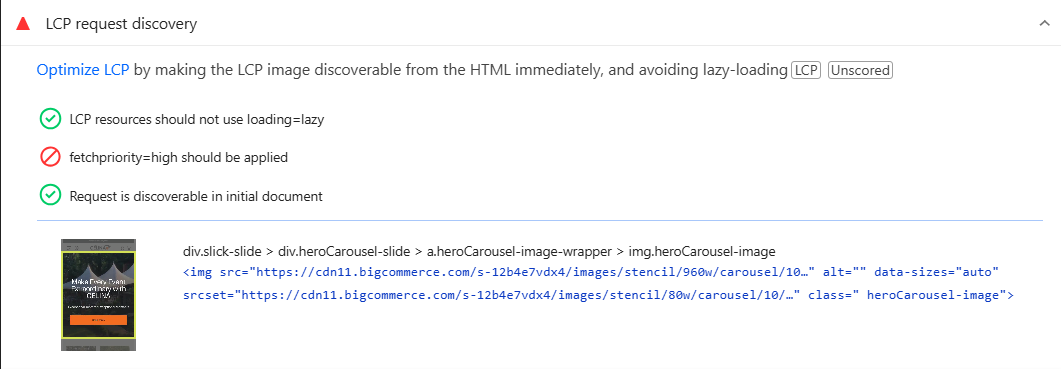
Common problems include:
- Lazy-loading hero images
- Missing preload directives
- Low-priority image fetching
- Excessively large image files
Why It Matters
LCP is one of Google’s Core Web Vitals metrics and directly measures perceived loading performance.
How to Fix It
Avoid lazy-loading above-the-fold images.
Instead:
<img
    src="hero.webp"
    fetchpriority="high"
    width="1200"
    height="800"
    alt="Hero Image">
For critical hero images, preload them:
<link rel="preload" as="image" href="hero.webp">
This helps browsers prioritize important visual content earlier.
6. Image elements do not have explicit width and height
One of the most overlooked image loading issues is failing to define image dimensions. Without width and height attributes, browsers cannot reserve space before images load, making it difficult to maintain a stable layout.
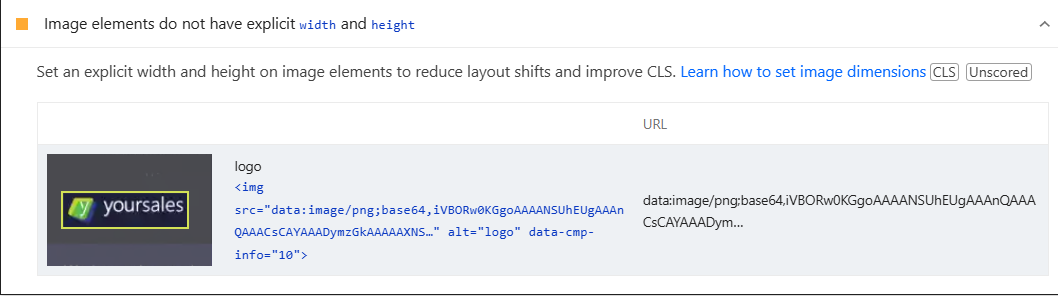
Why It Matters
This can cause unexpected layout shifts that contribute to poor Cumulative Layout Shift (CLS) scores, resulting in content that jumps around as images load. While specifying dimensions helps browsers allocate space correctly, using the best image size for website layouts also ensures images are displayed efficiently without unnecessary scaling or wasted bandwidth.
How to Fix It
Always specify image dimensions in your HTML:
<img
    src="product.webp"
    width="800"
    height="600"
    alt="Product">
When possible, use image dimensions that closely match the actual display size on the page. Also, choose the best image size to improve loading speed, website performance, and minimize layout instability.
7. Excessive Image Payload
An excessive image payload occurs when the total size of images on a page is larger than necessary. Even if individual images are optimized, too many large images can significantly increase page weight and trigger PageSpeed Insights warnings related to large network payloads.
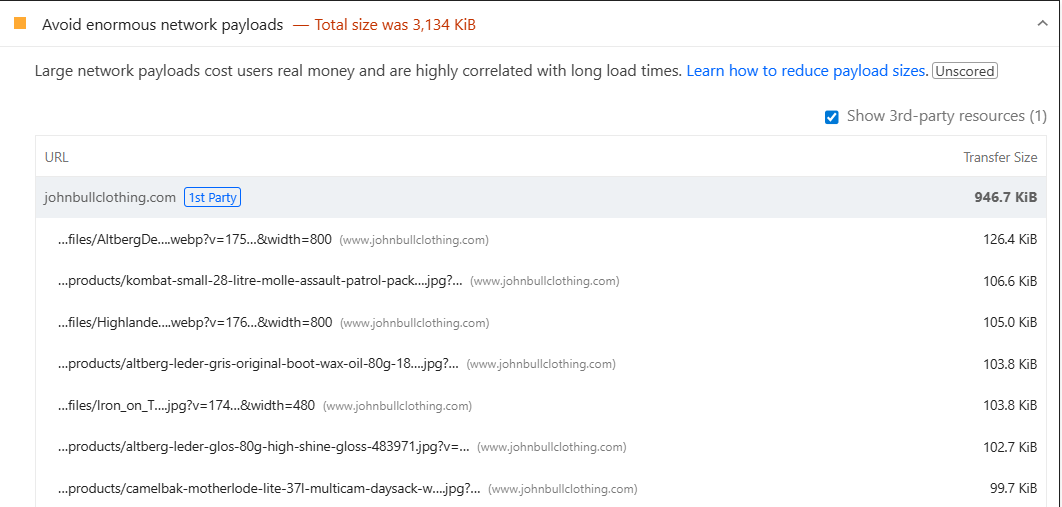
Why It Matters
Large image payloads increase download time, consume more mobile data, and can slow page loading, especially for users on slower connections.
How to Fix It
Whenever practical:
- Compress images before uploading
- Convert images to WebP or AVIF
- Remove unnecessary or duplicate images
- Serve responsive image sizes
This helps reduce page weight, improve loading speed, and enhance Core Web Vitals performance.
Which Image Issues Affect Core Web Vitals?
Effective image optimization for Core Web Vitals affects all major performance metrics.
| Core Web Vitals | Image Impact |
|---|---|
| LCP | Critical images often become the largest rendered element |
| CLS | Missing dimensions can cause layout shifts |
| INP | Images have minimal direct impact but can contribute indirectly through resource competition |
For many websites, image optimization delivers some of the largest performance gains available because images often represent the largest share of transferred page weight.
Best Practices to Optimize Images for PageSpeed Insights
When trying to optimize images for PageSpeed Insights, focus on a complete workflow:
- Convert images to WebP or AVIF.
- Serve responsive image sizes.
- Compress images before upload.
- Avoid lazy-loading LCP images.
- Set width and height attributes.
- Preload critical images.
- Use CDN-based image delivery when possible.
- Audit image performance regularly.
Following these practices addresses the most common PageSpeed Insights warnings related to images.
Conclusion
The most common image issues in Google PageSpeed Insights are usually tied to inefficient image delivery, oversized assets, outdated formats, poor loading strategies, and missing layout controls. While these warnings may seem technical, each one points to a practical opportunity to improve website performance.
By addressing issues such as properly sizing images, serving images in next-gen formats, preventing layout shifts, and optimizing image loading behavior, you can improve PageSpeed scores, strengthen Core Web Vitals, and create a faster experience for users across all devices.
FAQs
Q1. Why does Google PageSpeed Insights flag images?
Q2. What does “Serve images in next-gen formats” mean?
Q3. Do image issues affect Core Web Vitals?
Q4. What image format is recommended by Google?
Q5. Can image optimization improve PageSpeed scores?
Q6. Should I lazy-load all images?
Q7. How do oversized images affect performance?
Q8. Do image dimensions impact SEO?
Q9. Is WebP better than JPEG?
Q10. How often should I audit image performance?
9 June, 2026
Leave a Comment
Ishan Makkar
He is a web performance specialist focused on image optimization and site speed. As the founder of Image Optimizer Pro, he helps businesses reduce image load times and improve Core Web Vitals. His work centers on delivering faster websites, better user experience, and measurable SEO gains without complex development.