
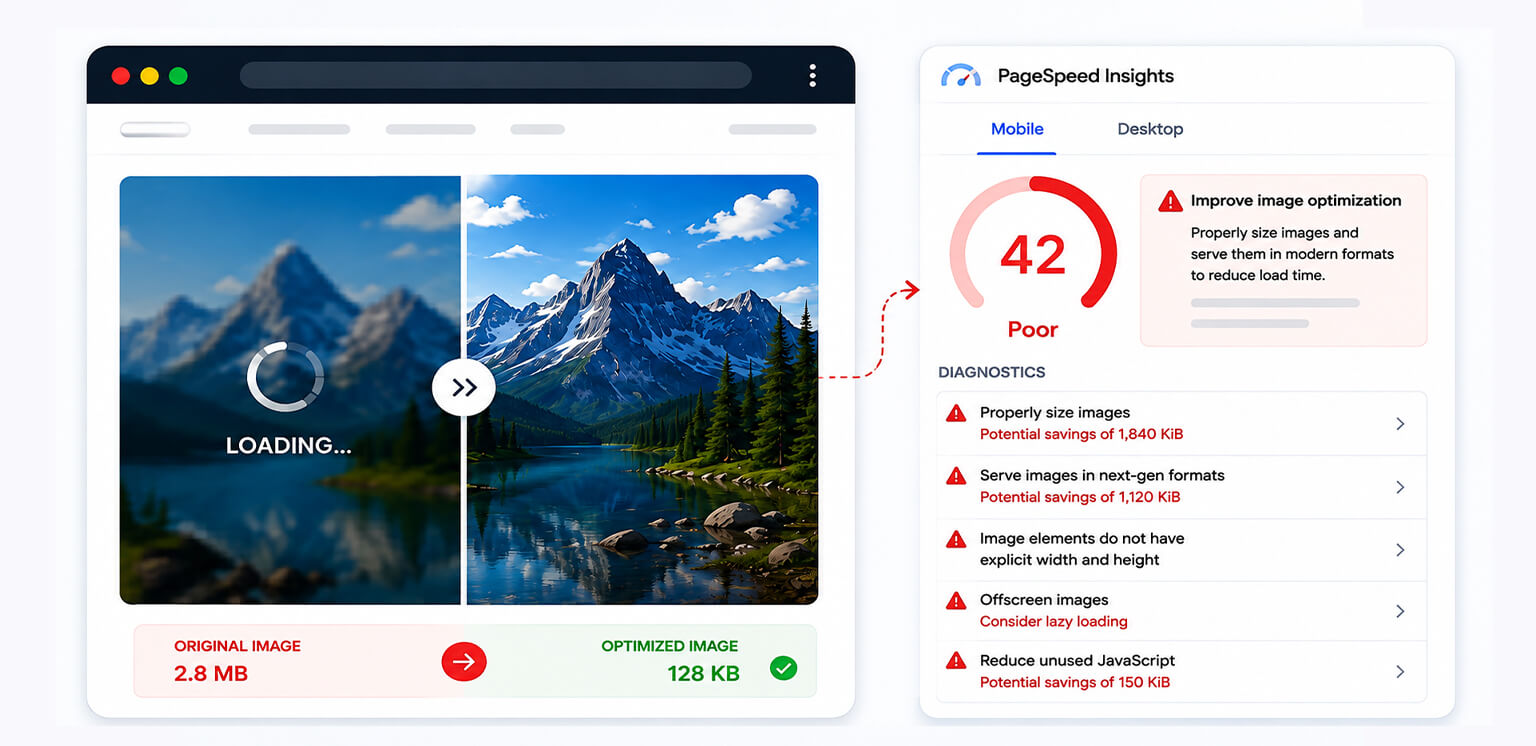
TL;DR: If your images still fail PageSpeed Insights after compression, compression is only solving one part of the problem. Google may still flag images that are oversized, delivered in the wrong format, loaded too late, missing responsive sizing, or competing with other resources. The fix is to optimize the entire image delivery path, not just reduce file size.
You compressed your images, reduced their file sizes, and expected the PageSpeed Insights score to improve. Then you ran the test again, and the same image warnings were still there. This is a common situation.
The reason is simple: image compression and PageSpeed Insights image optimization are not the same thing. Compression reduces the bytes inside an image. PageSpeed Insights can also evaluate whether the browser is receiving the right image dimensions, format, loading priority, and resource at the right time.
So if PageSpeed Insights still reports image-related issues after compression, don’t immediately compress them again. First, identify which image problem Google is actually reporting.
Quick Answer: Why Do Compressed Images Still Fail PageSpeed Insights?
Compressed images can still trigger PageSpeed Insights issues when they are oversized, served in inefficient formats, not delivered responsively, loaded too late, or delivered inefficiently. Compression reduces file size, but it does not fix these other image performance issues.
| Image performance issue | Why compression may not fix it | What to do |
|---|---|---|
| Properly sized images | The file is still larger than its displayed dimensions | Resize and serve responsive versions |
| Inefficient image formats | JPEG or PNG may still be heavier | Use WebP or AVIF where appropriate |
| Poor responsive delivery | Mobile may receive desktop-sized assets | Use srcset and sizes |
| Slow LCP image | The critical image is discovered or loaded too late | Prioritize the LCP image |
| Inefficient image delivery | Caching or delivery adds delay | Improve caching and CDN delivery |
| Too many images load initially | Compression doesn’t reduce image requests | Lazy-load non-critical images |
| Missing image dimensions | Layout space isn’t reserved | Add width and height |
Why Compression Alone Doesn’t Fix PageSpeed Insights Image Issues
Google’s guidance makes it clear that image optimization goes beyond compression. Factors such as image format, quality, resolution, responsive sizing, and delivery can all affect image performance. Images also often account for a significant share of a page’s downloaded bytes, making them an important performance optimization target.
Think of an image as having several performance layers:
File size → dimensions → format → responsive selection → loading priority → delivery → rendering
Compression mainly addresses the first layer. For example, imagine a product image that is:
- 2,400 × 2,400 pixels
- 280 KB after compression
- displayed at 400 × 400 pixels on mobile
The 280 KB file may be reasonably compressed, but the browser is still downloading more image data and pixels than are needed for the displayed size. That is why compressed images still fail PageSpeed Insights.
7 Reasons Images Still Fail PageSpeed Insights After Compression
Compression is only one part of PageSpeed Insights image optimization. Your images can still trigger warnings because of their dimensions, format, loading priority, delivery method, or how they are served across devices. The sections below break down the most common reasons images fail PageSpeed Insights even after compression, and what to fix for each one.
1. Your Images Are Compressed but Still Oversized
One of the most common reasons images fail PageSpeed Insights is that their dimensions are much larger than their displayed size.
For example, a product card may display an image at 300 × 300 pixels while the browser downloads a 1600 × 1600 version. Even after compression, you’re still sending more pixels than the page needs.
What to fix
Resize images to match their actual display size and serve responsive versions with srcset and sizes.
<img
  src="product-800.jpg"
  srcset="
    product-400.jpg 400w,
    product-800.jpg 800w,
    product-1200.jpg 1200w"
  sizes="(max-width: 600px) 100vw, 50vw"
  width="800"
  height="800"
  alt="Blue running shoes">
This helps the browser choose a more appropriate image instead of downloading an oversized asset.
2. The Image Format Is Still Inefficient
Compression does not automatically make an image format efficient. A compressed JPEG or PNG can still be larger than an equivalent WebP or AVIF image.
For many photographic and ecommerce images, modern formats can provide a better balance between quality and file size.
What to fix
Test WebP and AVIF against the original format and use the option that provides the best quality-to-size ratio for the image.
| Format | Best suited for | Key consideration |
|---|---|---|
| JPEG | Photos | Widely supported but can be larger |
| PNG | Graphics and transparency | Often inefficient for photos |
| WebP | Photos and ecommerce images | Good general-purpose option |
| AVIF | High-quality photographs | Often offers excellent compression |
3. You’re Sending the Same Image to Every Device
A large product image may look appropriate on desktop but be unnecessarily heavy for mobile. Simply shrinking the image with CSS doesn’t change the file the browser downloads.
What to fix
Use responsive image optimization with srcset and sizes so mobile devices can receive smaller assets while larger screens receive larger versions.
This is especially important for stores with hundreds of product images, where oversized mobile assets can quickly increase page weight.
4. Your LCP Image Is Loading Too Late
Sometimes an image is properly compressed and sized but still hurts performance because the browser discovers or loads it too late.
This matters most when the image is the Largest Contentful Paint (LCP) element, such as a hero image or featured product image.
What to fix
Prioritize the LCP image instead of lazy-loading it. You can use fetchpriority="high" when appropriate and make the image easy for the browser to discover.
<img
  src="hero.webp"
  width="1200"
  height="600"
  fetchpriority="high"
  alt="Summer collection">
Note: Don’t automatically apply loading="lazy" to above-the-fold images.
5. Your Images Are Delivered Too Slowly
A small image can still load slowly if it is delivered inefficiently. Slow servers, poor caching, distant infrastructure, or inefficient image delivery can add unnecessary waiting time even when the file itself is well compressed.
What to fix
Improve image delivery with effective caching, CDN delivery, and image-aware transformations where appropriate.
An image CDN can also help deliver optimized image variants closer to visitors and, when configured for image transformation, adapt assets to different devices.
6. Too Many Images Are Loading at Once
Compression reduces the size of individual images, but it doesn’t reduce the number of images being downloaded.
For example, a category page with 40 product images can still create significant network competition if all 40 load immediately.
What to fix
Lazy-load non-critical, below-the-fold images while allowing important above-the-fold images to load normally. This makes image loading optimization about when images load, not just how large they are.
7. Your Image Dimensions Aren’t Defined Properly
Image compression alone won’t prevent layout shifts. If the browser doesn’t know an image’s dimensions before it loads, it may have to adjust the layout when the image appears, potentially affecting Cumulative Layout Shift (CLS).
What to fix
Add accurate width and height attributes to images so the browser can reserve the correct space before the resource loads.
<img
  src="product.webp"
  width="600"
  height="600"
  alt="Black leather handbag">
This is particularly useful for product grids, recommendation sections, and other image-heavy layouts.
A Practical Way to Diagnose Images That Fail PageSpeed Insights
When PageSpeed Insights image warnings remain after compression, don’t repeatedly lower image quality. Instead, work through the audit in this order:
Step 1: Identify the exact audit
Look for recommendations such as:
- Properly size images
- Serve images in next-gen formats
- Improve image delivery
- Preload key requests
- Largest Contentful Paint
- Defer offscreen images
Each recommendation points toward a different problem.
Step 2: Check the actual rendered size
Compare the image’s intrinsic dimensions with the dimensions at which it appears on the page.
If a 1600-pixel image is displayed at 400 pixels, resizing or responsive delivery is likely more useful than additional compression.
Step 3: Check what the browser actually downloads
Don’t rely only on the image filename.
Open Chrome DevTools → Network → Img and inspect the requested file, transfer size, dimensions, and timing.
This can reveal a common problem: you optimized the original file, but the website’s CMS, theme, app, or CDN is still serving a different version.
Step 4: Check the LCP image separately
If the problematic image is above the fold, don’t automatically lazy-load it. Check when the browser discovers it and when the request begins. Late discovery can be a bigger issue than another 20 KB of compression.
Step 5: Test mobile separately
PageSpeed Insights can expose problems that are more visible under mobile conditions.
Check whether mobile visitors are receiving unnecessarily large product images, desktop hero images, or excessive image requests.
A Simple Image Optimization Workflow That Actually Works
For most websites, particularly ecommerce sites, a reliable workflow looks like this:
Resize → choose format → compress → create responsive variants → prioritize critical images → lazy-load non-critical images → optimize delivery → test again
Each step solves a different problem. For example, consider a 1,500 × 1,500 product image:
- Before:
1,500 × 1,500 JPEG → 450 KB → displayed at 400 × 400 - After:
400–800 pixel responsive WebP/AVIF candidate → appropriately compressed → selected with srcset → loaded according to viewport priority
The second setup isn’t merely a smaller file. It is a better image delivery strategy. For larger ecommerce catalogs, bulk image compression can be helpful in scaling this problem.
Why PageSpeed Insights Can Still Show Image Warnings After You Optimize Them
There is another detail that often confuses: PageSpeed Insights is measuring the page it can access, not necessarily the files sitting in your image library.
You may have optimized an original image, but the live page could still be:
- Requesting an older image URL
- Generating a larger thumbnail
- Serving a different format
- Using a CSS background image
- Loading an image through JavaScript
- Sending the wrong responsive candidate
- Using a cached version of the previous asset
For example, CSS background images can be harder for the browser’s preload scanner to discover than ordinary <img> elements.
Google’s web.dev guidance recommends using responsive <img> markup where practical for important images. So always test the live URL, not just the optimized source file.
Common Mistakes When Fixing PageSpeed Insights Image Issues
Fixing image issues isn’t just about making files smaller. Some common optimization shortcuts can actually create new performance problems or leave the original PageSpeed Insights warnings unresolved.
Compressing the same image repeatedly
If the issue is incorrect dimensions or loading priority, additional compression won’t solve it.
Converting everything to WebP or AVIF
Modern formats are useful, but format selection should consider image type, quality, compatibility, and actual file size.
Lazy-loading every image
Above-the-fold and LCP images generally need different treatment from below-the-fold images.
Serving one image size everywhere
Responsive images exist precisely because a single asset rarely fits every viewport efficiently.
Optimizing only the original files
The live page may generate or request another version. Always verify the actual network request.
Conclusion
If your images still fail PageSpeed Insights after compression, the answer usually isn’t “compress them more.”
Look beyond file size.
Check whether the image is properly sized, responsive, delivered in an efficient format, loaded at the right priority, and served through an efficient delivery path. Then verify what the live page actually requests.
That shift from image compression to complete image delivery optimization is what turns a collection of smaller images into a genuinely faster page.
FAQs
Why do images fail PageSpeed Insights even after compression?
Does converting images to WebP fix PageSpeed Insights?
Why are my compressed images still slow?
Should I lazy-load images to improve PageSpeed Insights?
How do I properly size images for PageSpeed Insights?
Can image optimization improve mobile conversion rates?
28 August, 2026
Leave a Comment
Ishan Makkar
He is a web performance specialist focused on image optimization and site speed. As the founder of Image Optimizer Pro, he helps businesses reduce image load times and improve Core Web Vitals. His work centers on delivering faster websites, better user experience, and measurable SEO gains without complex development.