
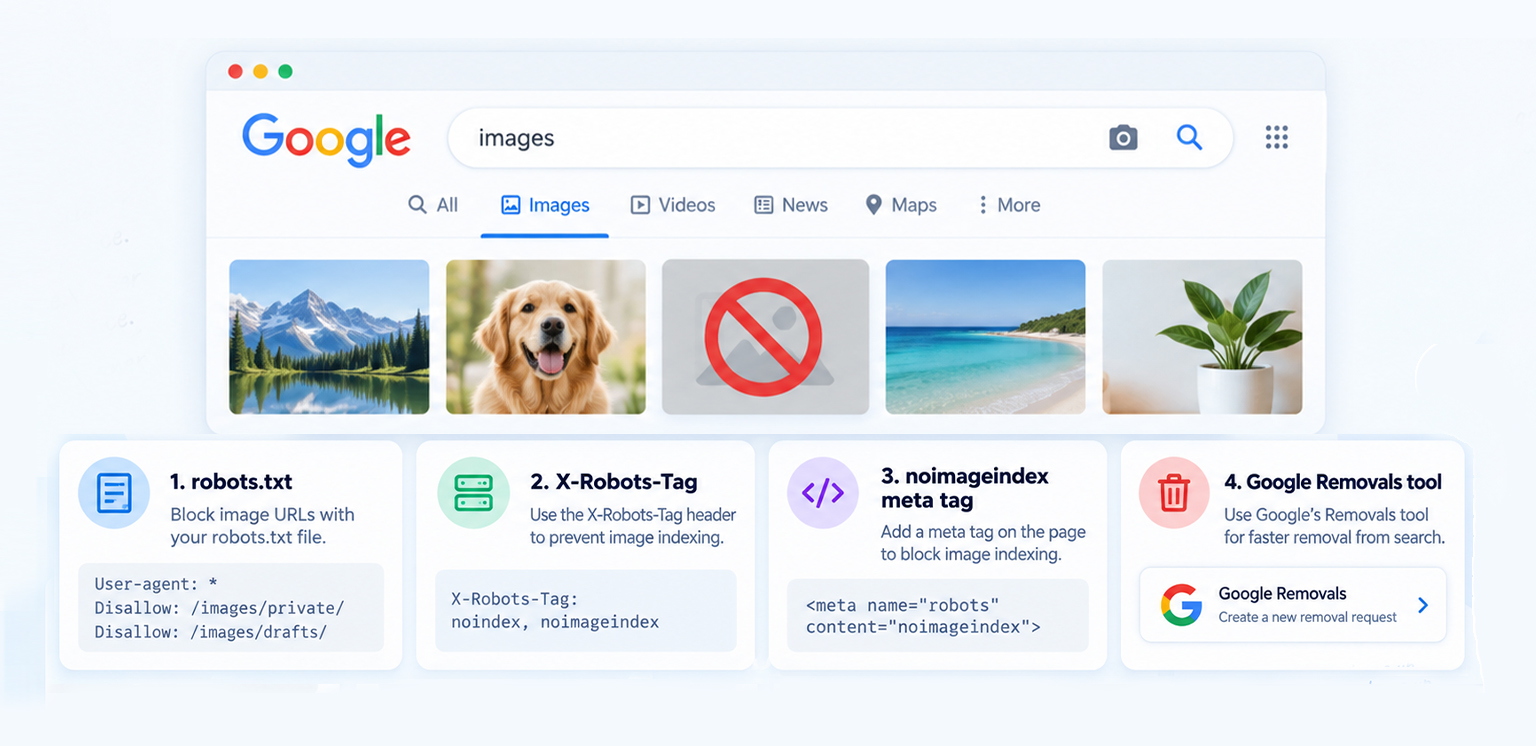
TL;DR: Want to stop Google from indexing images? Use robots.txt to prevent specific images from appearing in Google Images, X-Robots-Tag: noindex for image-level indexing control, or noimageindex for page-level restrictions. Already indexed? Use Google’s Removals tool, then apply a permanent solution.
Not every image on a website needs to appear in Google Images. You may have private graphics, temporary campaign assets, internal screenshots, duplicate files, decorative images, customer-uploaded content, or images that simply don’t belong in search.
The problem is that removing an image from your HTML or changing its alt text does not automatically tell Google to stop indexing the image.
The good news is that Google provides several ways to control image indexing. The right method depends on whether you want to block an image before it is indexed, remove an image that is already appearing in search, or prevent images on an entire page from being indexed.
Which Method Should You Use to Stop an Image From Appearing in Google?
Control image visibility in Google with the right method for your situation, robots.txt, X-Robots-Tag: noindex, or noimageindex. The best option depends on whether you want to block crawling, prevent indexing, or remove an image already in search.
| Goal | Best Approach |
|---|---|
| Stop specific images from appearing in Google Images | robots.txt with Googlebot-Image |
| Prevent a specific image URL from being indexed | X-Robots-Tag: noindex |
| Prevent images on one page from being indexed | noimageindex |
| Remove an image already showing in Google quickly | Google Search Removals tool |
| Permanently remove an unwanted image | Delete it or combine removal with a lasting blocking method |
| Keep useful images searchable | Don’t block them unnecessarily |
Google’s own documentation recommends either robots.txt rules or the noindex X-Robots-Tag for non-emergency image removal.
When Should You Prevent an Image From Appearing in Google?
Image indexing is generally useful for SEO, so blocking images should not be your default approach.
There are legitimate reasons to prevent image indexing, though. For example, an ecommerce site might have hundreds of temporary promotional banners that have no search value. A SaaS company might have internal UI screenshots that should not attract search traffic. A website may also contain duplicate image files, placeholders, or user-uploaded images that aren’t intended to be publicly discoverable through Google Images.
There is also a practical distinction between an image being accessible on your website and an image being eligible to appear in Google Search . You can keep an image available to visitors while telling Google not to include it in search results.
Google specifically notes that image files can be controlled with robots.txt, while an X-Robots-Tag can provide indexing instructions for non-HTML resources such as images.
Does Alt Text Prevent Google From Indexing Images?
No. Changing an image’s alt text or title attribute does not prevent Google from indexing the image. These attributes provide information about an image, but they are not indexing controls.
Alt text primarily provides a text alternative for users who cannot see an image and can also help Google understand the image and its context. The title attribute may provide additional information in some browsing contexts, but it does not tell Google whether an image should appear in search.
For example:
<img src="/images/internal-dashboard.png"
     alt="Internal analytics dashboard"
     title="Dashboard screenshot">
Changing the alt text to something like “do not index this image” will not stop Google from indexing the file. If you need to prevent image indexing, use a technical control such as robots.txt, noimageindex, or an X-Robots-Tag: noindex HTTP header.
This distinction is also important for image SEO alt text and other image attributes help search engines understand useful images, while indexing controls determine whether those images should appear in search.
How to Stop Google From Indexing Images
There are three main approaches worth understanding.
1. Use robots.txt to Block Googlebot-Image
For many websites, robots.txt is a straightforward way to prevent specific images from appearing in Google Images, particularly when unwanted images follow a predictable URL pattern. Suppose your image is located at:
https://example.com/images/internal-dashboard.jpgYou could add:
User-agent: Googlebot-Image
Disallow: /images/internal-dashboard.jpg
This tells Googlebot-Image not to crawl the image URL, which prevents the image from appearing in Google Images. If you want to exclude the image from Google’s other search results as well, target Googlebot instead.
You can also block a group of images using a pattern:
User-agent: Googlebot-Image
Disallow: /private-images/
Or:
User-agent: Googlebot-Image
Disallow: /*-internal.jpg$
This approach is particularly useful when unwanted images follow a predictable URL structure.
2. Use X-Robots-Tag: noindex for Image-Level Control
If you control the server or CDN, an X-Robots-Tag can be a better choice when you want Google to receive an explicit noindex directive for an image.
For example:
X-Robots-Tag: noindexFor an image response, the server might return:
HTTP/1.1 200 OK
Content-Type: image/jpeg
X-Robots-Tag: noindex
Google supports X-Robots-Tag for non-HTML resources, including image files.
The critical detail is that Googlebot must be able to crawl the image URL to see the header. If you simultaneously block that same URL in robots.txt, Google may not be able to retrieve the response and therefore won’t see the noindex directive.
Choose one method based on your goal: robots.txt blocks crawling, while X-Robots-Tag: noindex allows Google to crawl the image but prevents it from being indexed.
3. Use noimageindex When the Problem Is a Specific Page
Google supports the noimageindex robots directive:
<meta name="robots" content="noimageindex">This tells Google not to index images on that page. You can also use:
<meta name="googlebot" content="noimageindex">when the directive is specifically intended for Googlebot. This can be useful for a page containing screenshots, private-looking graphics, or other images that shouldn’t appear in Google Images.
However, there is an important limitation.
If the same image appears on other crawlable pages, Google may still discover and index it through those pages. If you need to prevent a specific image from being indexed wherever it appears, use an X-Robots-Tag: noindex HTTP header on the image itself.
robots.txt vs noindex vs noimageindex
The terms can sound interchangeable, but they solve slightly different problems.
| Method | Controls | Best For | Important Limitation |
|---|---|---|---|
| robots.txt | Crawling of image URLs | Blocking groups or patterns of images | Google cannot see an indexing directive on a blocked URL |
| X-Robots-Tag: noindex | Indexing of individual media URLs | Strong image-level indexing control | Image must remain crawlable |
| noimageindex | Images associated with a page | Preventing images on a particular page from being indexed | Same image may be indexed from another page |
| Google Removals tool | Existing Google results | Urgent temporary removal | Not a permanent replacement for site-level control |
Google explicitly distinguishes crawling from indexing. A robots.txt rule controls whether Google can access the URL, while noindex tells Google not to include accessible content in its search index.
How to Remove an Image From Google Search After It’s Indexed
Blocking an image and removing an image that’s already indexed are not exactly the same task.
If an unwanted image is already appearing in Google Search and you own the site in Search Console, you can use Google’s Removals tool when you need a faster result. The removal is temporary and generally lasts about six months, so you should also apply a permanent solution to prevent the image from returning to Search.
The more important step is to establish a permanent source-level solution. For example, if an image should never appear in search again, you might:
- Remove the image from your website if it is no longer needed.
- Make sure the removed image URL returns an appropriate HTTP status, such as 404 or 410.
- If the image needs to remain accessible, use
X-Robots-Tag: noindex. - Use an appropriate
robots.txtrule when you want to prevent image crawling. - Use Google’s Removals tool when the image needs to disappear from Search quickly.
Google’s documentation specifically recommends removing the content and returning 404 or 410 when content should be permanently removed.
What Not to Do When Trying to Prevent Image Indexing
Don’t Rely on Alt Text
Adding phrases such as “do not index” to alt text doesn’t control indexing.
<img src="/images/private.jpg"
     alt="do not index this image">
Google doesn’t interpret that as an indexing directive.
This is another reason the alt text vs image title distinction matters: both are content or descriptive attributes, not substitutes for technical indexing controls.
Don’t Block the Image With robots.txt and Expect noindex to Work
Consider this setup:
User-agent: Googlebot-Image
Disallow: /images/private.jpg
and then:
X-Robots-Tag: noindexThe second directive won’t help if Google cannot crawl the image to retrieve the HTTP header. Google explicitly states that crawlers must be able to access a resource to see its noindex directive.
Don’t Block All Images Without Checking Their SEO Value
A blanket rule such as:
User-agent: Googlebot-Image
Disallow: /
can remove your entire image library from Google Images.
That’s appropriate only when you intentionally want to block all images. For most ecommerce and content websites, that would unnecessarily sacrifice image-search visibility.
Which Image Indexing Method Is Right for You?
The easiest way to decide is to start with the image’s intended role.
If the image should not appear in Google Search: use a specific robots.txt rule or code X-Robots-Tag: noindex, depending on whether you want to block crawling or allow crawling while preventing indexing.
If only images on one page should be excluded: noimageindex may be sufficient.
If the image is already indexed and needs to disappear quickly: use Google’s Removals tool, then implement a permanent solution.
If the image is useful and should attract organic traffic: don’t block it. Instead, focus on image SEO, accessibility, performance, and discoverability.
That last point is particularly important for ecommerce websites. Image indexing and image optimization are separate concerns. You can compress an image, convert it to WebP or AVIF, improve loading behavior, and optimize its dimensions without needing to remove it from Google.
How to Check Whether Google Is Still Indexing an Image
After implementing an indexing restriction, don’t assume it worked immediately.
Google has to recrawl the relevant URL before it can process many indexing changes. Google also notes that noindex may take time to take effect because the crawler needs to revisit the resource.
For troubleshooting, check:
- Whether the image URL is still accessible.
- Whether robots.txt is blocking the URL.
- Whether the expected X-Robots-Tag is actually returned in the HTTP response.
- Whether noimageindex is present on the intended page.
- Whether the same image is referenced from other crawlable pages.
- Whether Google has had an opportunity to recrawl the resource.
A Practical Image Indexing Workflow
For most websites, a simple workflow prevents mistakes.
First, identify why the image shouldn’t appear in Google. If it’s private or obsolete, deletion may be the cleanest option. If it needs to remain publicly accessible, use an indexing control instead.
Next, identify whether you are controlling a single image, a group of images, or all images. This determines whether an individual X-Robots-Tag, a URL pattern in robots.txt, or a page-level noimageindex rule makes the most sense.
Finally, verify the implementation and monitor the image after Google has had time to recrawl it. This is especially important on large ecommerce websites where image URLs can be generated automatically.
A store with thousands of product assets may need a more systematic approach than manually changing individual files. However, image optimization itself should not be confused with image indexing control.
Conclusion
You don’t need to remove every unwanted image to stop Google from indexing images. Use robots.txt to control crawling, X-Robots-Tag: noindex for image-level indexing control, and noimageindex for page-level restrictions. For images already appearing in Google, use the Removals tool alongside a permanent solution.
Remember, image metadata and indexing controls solve different problems. Alt text can help Google understand useful images, but it doesn’t tell Google whether an image should be indexed.
Frequently Asked Questions
Q1: How do I stop Google from indexing images?
Q2: Does noindex work for images?
Q3: Does robots.txt prevent images from being indexed?
Q4: What is noimageindex?
Q5: Can I remove an image from Google Search without deleting it from my website?
Q6: Does alt text affect whether Google indexes an image?
15 September, 2026
Leave a Comment
Ishan Makkar
He is a web performance specialist focused on image optimization and site speed. As the founder of Image Optimizer Pro, he helps businesses reduce image load times and improve Core Web Vitals. His work centers on delivering faster websites, better user experience, and measurable SEO gains without complex development.