
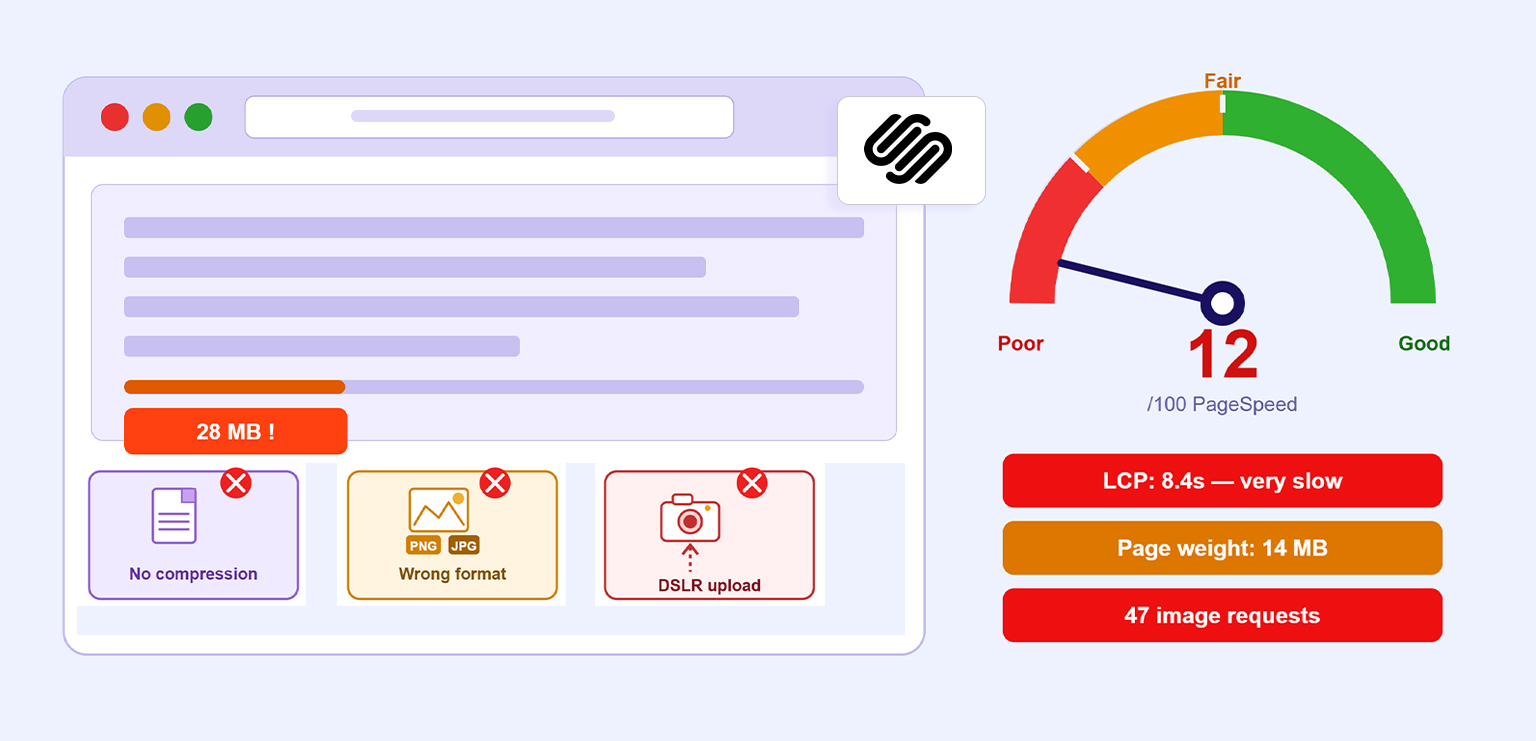
TL;DR: Many slow Squarespace websites are affected by image-related issues rather than the platform itself. Common mistakes such as oversized uploads, excessive galleries, poor image compression, and incorrect image sizing can increase page weight and hurt user experience. This article explains the most common Squarespace image mistakes and how they impact website performance, helping you identify opportunities to improve speed without changing your design.
Squarespace handles many image optimization tasks automatically, but that doesn’t mean every image uploaded to the platform is performance-friendly. Oversized photos, large background images, image-heavy galleries, and other common Squarespace image mistakes can still create a noticeably slower browsing experience.
That’s why understanding what Squarespace optimizes and what it doesn’t is essential for maintaining strong website performance.
In many cases, improving performance isn’t about redesigning the site, it’s about compressing images appropriately and avoiding common image-related decisions that add unnecessary weight to a page.
Quick Look: Image Issues That Impact Squarespace Performance
Common Squarespace image mistakes, such as oversized uploads, poor compression, image-heavy layouts, and inefficient image delivery, can slow down page loading and hurt the overall browsing experience. The table below summarizes the most common issues and their impact on performance.
| Image Mistakes | How It Affects Performance |
|---|---|
| Uploading original high-resolution photos | Increases page weight and loading time |
| Using oversized banners or background images | Delays visual rendering, especially on mobile |
| Skipping image compression | Transfers more data than necessary |
| Adding too many galleries and image sections | Increases image requests and page complexity |
| Ignoring responsive image behavior | Can result in inefficient image delivery across devices |
| Using Too Many Full-Width Image Sections | Delays content rendering & creates a heavier page experience |
| Serving large desktop images to mobile users | Creates unnecessary downloads on smaller screens |
| Using the wrong image format | Leads to larger file sizes than necessary |
| Uploading more images than a page needs | Slows down page rendering and user interactions |
Why Image Optimization Still Matters on Squarespace
A common misconception is that Squarespace automatically fixes every image-related performance issue. Squarespace does several things well. It generates multiple image sizes, supports responsive delivery, and automatically displays images in WebP format for better efficiency.
However, Squarespace cannot:
- Decide whether an image is unnecessarily large
- Remove visual data that visitors don’t need
- Reduce the number of images on a page
- Optimize design decisions that create excessive image requests
As a result, poor image practices can still significantly impact perceived loading speed. This is why Squarespace image optimization extends beyond simple compression. Factors such as image dimensions, responsive delivery, file formats, and page-level image usage all contribute to overall performance.
What’s Slowing Down Your Squarespace Website? 9 Image Mistakes Explained
In many cases, a slow Squarespace website is the result of image-related issues such as oversized uploads, poor compression, image-heavy layouts, and inefficient image delivery. The following Squarespace image mistakes are among the most common causes of slower website performance:
Mistake #1: Uploading Original DSLR or High-Resolution Photos Directly
One of the most common Squarespace image issues occurs when users upload images directly from professional cameras.
Modern DSLR and mirrorless cameras often produce images between 5 MB and 30 MB. Even though Squarespace processes these files, unnecessarily large uploads can make image management more difficult and often indicate that images have not been prepared for efficient web delivery.
For example:
| Image Source | Typical File Size |
|---|---|
| Optimized web image | 150–500 KB |
| Smartphone photo | 2–8 MB |
| DSLR image | 10–30 MB |
In these cases, the extra image data increases page weight without providing a noticeable improvement in visual quality. When uploading website images, there is rarely a reason to use the original camera file.
How to Fix It:
- Resize images before uploading.
- Compress images for web use.
- Avoid uploading original camera files.
Mistake #2: Using Massive Background and Banner Images
Large hero banners are visually appealing, but they are frequently among the heaviest assets on a Squarespace page.
Squarespace recommends matching image dimensions to their intended display area and notes that background images behave differently in responsive layouts. Oversized banners often force visitors to download significantly more image data than necessary.
A common example is uploading:
- A 6000px-wide homepage banner
- A 10 MB background image
- Full-screen photography for every section
These design choices can make a website feel sluggish before users even begin interacting with content.
How to Fix It:
- Match image dimensions to display size.
- Compress large banner images.
- Avoid unnecessarily oversized backgrounds.
Mistake #3: Not Compressing Images Before Uploading
Perhaps the most preventable of all Squarespace image optimization mistakes is skipping compression.
Many site owners rely entirely on Squarespace’s processing pipeline and upload large JPEGs or PNGs without reducing file size first.
Compression removes unnecessary image data while preserving visual quality. For example:
| Image Version | File Size |
| Original JPEG | 3.5 MB |
| Optimized JPEG | 450 KB |
| Optimized WebP | 250 KB |
The visual difference may be nearly invisible, but the loading impact can be substantial. This is one reason many website owners use dedicated image compression tools before uploading images. Learning how to properly compress images for Squarespace before uploading remains one of the easiest ways to reduce page weight.
How to Fix It:
- Compress images before upload.
- Remove unnecessary image data.
- Balance quality and file size.
Mistake #4: Adding Image-Heavy Galleries to Every Page
Galleries are useful, but overusing them creates performance problems.
A homepage containing:
- Multiple gallery sections
- Portfolio grids
- Testimonial image sliders
- Product image collections
may require dozens of image requests before the page becomes fully interactive.
Even if individual images are optimized, loading too many at once increases overall page weight. This is especially common on growing online stores where large batches of product images are added without proper bulk image optimization.
This issue is particularly common among photographers, agencies, designers, and e-commerce brands using Squarespace.
How to Fix It:
- Limit galleries to essential content.
- Optimize gallery images in bulk.
- Remove redundant image sections.
Mistake #5: Ignoring Squarespace’s Responsive Image Behavior
Squarespace automatically generates multiple image widths and serves different versions depending on the visitor’s device. Squarespace’s Official documentation states that Squarespace creates several image variations ranging from 100px to 2500px wide.
However, many users misunderstand how this system works. Some upload extremely small images expecting Squarespace to scale them effectively. Others upload excessively large images, assuming the platform will eliminate all performance concerns.
Neither approach works well. Responsive image delivery is most effective when the original image is already reasonably optimized.
How to Fix It:
- Upload appropriately sized images.
- Avoid extremely small or oversized files.
- Let responsive image delivery work efficiently.
Mistake #6: Using Too Many Full-Width Image Sections
Full-width image sections are popular in Squarespace because they create a visually engaging design. However, using them excessively can significantly increase page weight, especially when each section relies on large background or banner images.
A page filled with multiple full-width image sections often requires visitors to load far more image data than necessary. While a single section may have little impact, several image-heavy sections on the same page can make the website feel slower and less responsive, particularly on mobile devices.
How to Fix It:
- Use full-width sections selectively.
- Alternate with text-based content blocks.
- Optimize all banner and background images.
Mistake #7: Using Oversized Images for Mobile Visitors
Mobile visitors now represent the majority of traffic for many websites. Yet many Squarespace websites continue serving visual experiences designed primarily for desktop screens.
Common examples include:
- Full-width desktop banners displayed on phones
- Large background photography sections
- Text-over-image designs requiring huge source files
While Squarespace’s responsive design adapts layouts automatically, oversized source images can still create unnecessary downloads and slower perceived performance.
How to Fix It:
- Prioritize mobile-friendly image sizes.
- Avoid desktop-sized images where unnecessary.
- Test page performance on mobile devices.
Mistake #8: Choosing the Wrong Image Format
Image format selection still matters. Squarespace automatically converts uploaded images to WebP for display, improving efficiency compared to traditional JPEG and PNG formats.
However, choosing the wrong source format can still affect upload size and processing efficiency.
A practical rule:
- JPEG: Best for photographs
- PNG: Best for transparency and graphics
- WebP: Best overall compression efficiency
- GIF: Only when animation is required
Using PNG for every image often results in unnecessarily large file sizes.
How to Fix It:
- Use JPEG for photographs.
- Use PNG only when transparency is needed.
- Use WebP whenever possible.
Mistake #9: Treating Image Optimization as a One-Time Task
Many site owners optimize images once and never revisit them. Over time, websites accumulate:
- New blog posts
- Additional landing pages
- Updated product catalogs
- New galleries
The result is gradual performance degradation. Image optimization should be part of an ongoing website maintenance process rather than a one-time launch checklist.
How to Fix It:
- Audit images regularly.
- Optimize new uploads consistently.
- Monitor image-related performance issues over time.
How These Mistakes Affect Squarespace Website Performance
When several of these issues occur together, websites often experience:
- Slower page loading
- Higher Largest Contentful Paint (LCP)
- Increased bandwidth usage
- Poor mobile experience
- Lower engagement rates
- Reduced conversion potential
Many of these issues directly affect Core Web Vitals, particularly Largest Contentful Paint (LCP), which often depends on images loading quickly. When key visual elements are oversized or poorly optimized, visitors may perceive the page as slow, even if the rest of the content loads normally.
Conclusion
Most Squarespace image mistakes stem from how images are prepared, uploaded, and managed rather than limitations within Squarespace itself.
While Squarespace provides strong built-in image delivery features, website owners still play a critical role in preparing images correctly. Avoiding oversized images on Squarespace and following consistent image size optimization practices can significantly improve Squarespace website speed over time.
By recognizing and addressing these common Squarespace image optimization mistakes, you can create a faster, smoother user experience without changing your website’s design or content strategy.
FAQs
Why is my Squarespace website slow, even after optimizing images?
What image size is best for Squarespace websites?
Do large images slow down Squarespace websites?
Does Squarespace automatically optimize images?
What image format should I use on Squarespace?
Does Squarespace resize images automatically?
How can I tell if images are slowing down my Squarespace website?
12 June, 2026
Leave a Comment
Ishan Makkar
He is a web performance specialist focused on image optimization and site speed. As the founder of Image Optimizer Pro, he helps businesses reduce image load times and improve Core Web Vitals. His work centers on delivering faster websites, better user experience, and measurable SEO gains without complex development.