
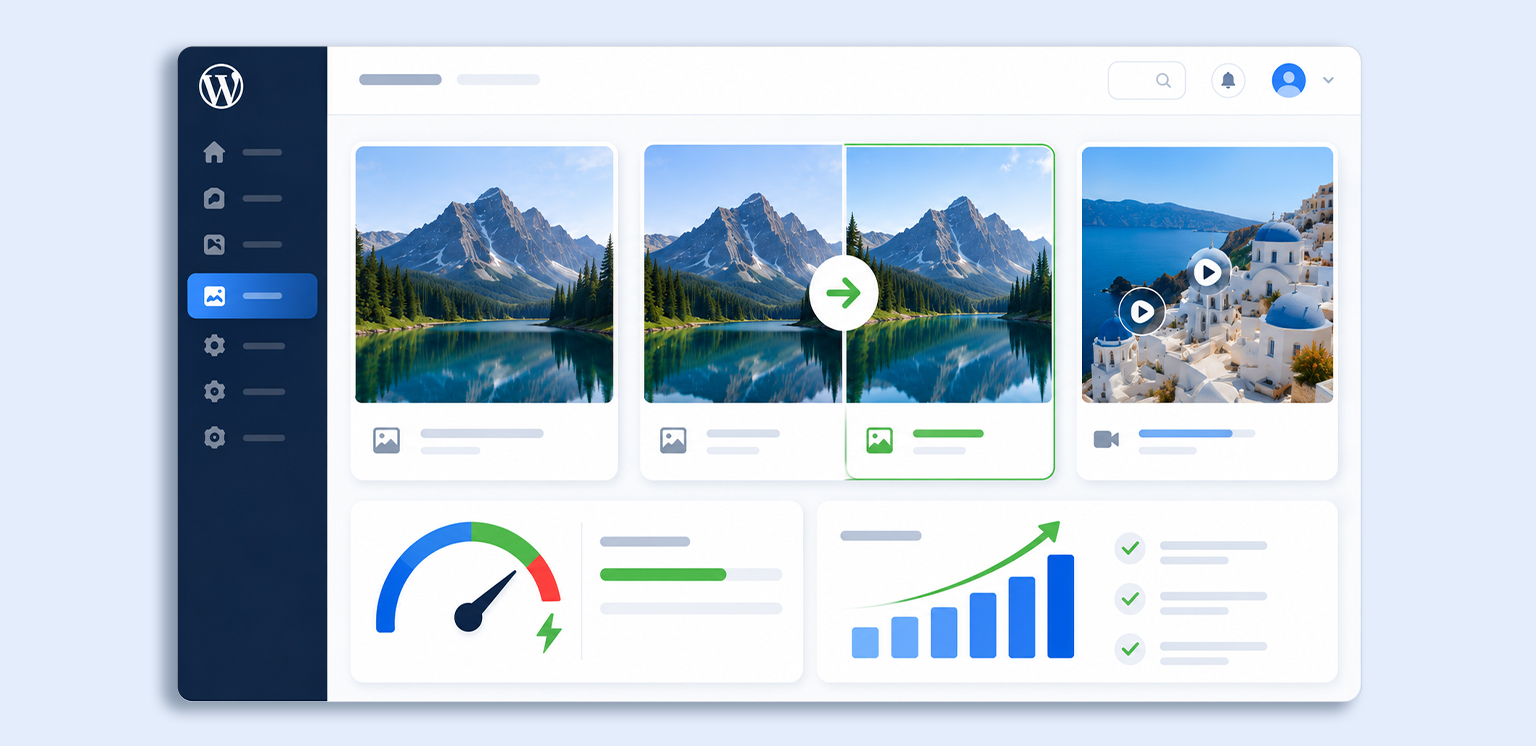
TL;DR: WordPress image optimization helps reduce image file sizes without sacrificing visual quality, resulting in faster-loading pages, better Core Web Vitals, improved SEO, and a smoother user experience. By choosing the right image formats, compressing images, serving responsive images, and automating optimization, you can significantly improve your WordPress website speed while maintaining high-quality visuals.
WordPress makes it incredibly easy to upload images, create galleries, and manage media. It even generates multiple image sizes automatically for responsive layouts. Because of this, many website owners assume WordPress is already optimizing their images behind the scenes. Unfortunately, that’s only partly true.
While WordPress helps display images efficiently, it doesn’t significantly reduce image file sizes, convert images to modern formats, or optimize existing uploads for speed. As your media library grows, oversized images can quietly become one of the biggest reasons for slow-loading pages and poor Core Web Vitals.
This guide explains exactly how WordPress image optimization works, what WordPress does automatically, where it falls short, and the best ways to speed up your website without sacrificing image quality.
Quick Tips for WordPress Image Optimization
Before diving into the details, here’s a quick overview of the most effective WordPress image optimization techniques and how each one contributes to a faster, more efficient website.
| Optimization Tip | How It Improves Website Speed |
|---|---|
| Compress images | Reduces image file sizes, helping pages load faster without noticeably affecting quality. |
| Use the correct image dimensions | Prevents browsers from downloading oversized images, reducing page weight. |
| Choose efficient formats like WebP | Delivers smaller image files than JPEG or PNG, improving loading performance. |
| Serve responsive images | Loads the most appropriate image size for each device, reducing unnecessary data usage. |
| Enable lazy loading | Delays loading offscreen images until they’re needed, improving initial page speed. |
| Optimize existing images in bulk | Reduces the size of older Media Library images, improving performance across your entire website. |
What Is WordPress Image Optimization?
WordPress image optimization is the process of reducing image file sizes and delivering them efficiently to improve website speed without compromising visual quality.
A complete WordPress image optimization strategy includes:
- Compressing images to reduce file size
- Using the correct WordPress image sizes
- Choosing efficient formats like WebP
- Serving WordPress responsive images
- Optimizing image filenames and alt text for SEO
Whether you run a blog, business website, or WooCommerce store, these optimizations help pages load faster, improve user experience, and support better search visibility.
Why Is WordPress Image Optimization Important?
WordPress makes publishing images easy, but as your media library grows, large or unoptimized files can quietly become one of the biggest performance issues on your website. Optimizing images improves far more than just loading speed.
Faster Page Loading
Images are often the largest files downloaded when someone visits your website. Reducing their file size allows pages to load more quickly, especially on slower mobile networks.
Better WordPress Core Web Vitals
Large images can increase Largest Contentful Paint (LCP), one of Google’s Core Web Vitals metrics. Proper optimization helps pages render faster and improves the overall user experience.
Improved Search Visibility
Search engines favor websites that deliver fast, accessible experiences. Optimized images, descriptive filenames, and meaningful alt text contribute to stronger WordPress image SEO and make your content easier to understand.
Better Mobile Performance
Most visitors now browse on mobile devices, where slower connections and smaller screens make image optimization even more important. Properly optimized images reduce unnecessary downloads and improve responsiveness.
Lower Bandwidth and Storage Usage
Smaller image files consume less server storage and bandwidth, which can reduce hosting costs and help your website handle higher traffic more efficiently.
Improved User Experience
Visitors expect pages to load quickly. Fast-loading, high-quality images create a smoother browsing experience, encourage users to stay longer, and reduce the likelihood of them leaving before your page finishes loading.
Does WordPress Automatically Optimize Images?
Many users believe WordPress automatically optimizes every uploaded image, but that’s only partially true.
WordPress does provide a few built-in image optimization features. It automatically creates multiple image sizes, supports responsive images through srcset, and can generate thumbnails for different layouts.
However, WordPress does not:
- significantly compress image file sizes
- optimize previously uploaded images
- convert existing JPEG or PNG images into WebP automatically
- remove unnecessary metadata
- perform bulk image optimization
As a result, large images uploaded directly from cameras or design software can still slow down your website. For the best performance, WordPress’s built-in features should be combined with proper compression, responsive images, and automated optimization.
How to Optimize Images in WordPress for Faster Loading
Optimizing images in WordPress involves several small but impactful improvements. From choosing the right image dimensions to using modern formats, these practical techniques can improve WordPress website speed, image SEO, and Core Web Vitals.
1. Start with Proper Image Dimensions Before Uploading
One of the biggest image optimization mistakes is uploading oversized photos without proper image dimensions.
For example, uploading a 5000-pixel-wide image when your content area displays it at only 1200 pixels wastes bandwidth without improving quality.
Before uploading images:
- Resize them to match your layout.
- Avoid relying on CSS to shrink oversized images.
- Use appropriately sized featured images, blog images, and thumbnails.
2. Compress Images Without Losing Quality
Image compression removes unnecessary image data while preserving visual quality. It’s one of the fastest ways to improve WordPress website speed because images often make up the largest portion of a webpage.
There are two ways to optimize images in WordPress.
Manual image compression
You can compress images before uploading them using desktop software or online compression tools. This gives you full control over every image, but it quickly becomes time-consuming if you publish content regularly or manage hundreds of images.
Manual optimization works well for small websites, but becomes difficult to maintain as your media library grows.
Automatic image compression
If you regularly upload blog posts, portfolios, or product images, automating the process is usually the more practical option. With Image Optimizer Pro, simply connect your WordPress website, open the Optimize Images section, and start the optimization process.
The app automatically compresses existing images, optimizes every new upload, and converts images into modern formats like WebP where appropriate, all while preserving visual quality. It also supports bulk optimization, so large media libraries can be optimized in a single workflow instead of editing every image manually.
3. Use Efficient Image Formats for WordPress
Using the right image format can significantly reduce file sizes and improve your WordPress website speed. While JPEG and PNG are still widely used, modern formats offer much better compression.
- JPEG is best for photographs and colorful images.
- PNG is ideal for graphics and images that require transparency.
- WebP provides smaller file sizes than JPEG and PNG while maintaining excellent visual quality, making it the preferred format for most WordPress websites.
- AVIF offers even better compression than WebP, although browser support is still growing.
Whenever possible, use WebP to reduce page weight and improve loading performance. While other formats like WebP and AVIF can also be a good choice, depending on your needs and compression.
4. Take Advantage of WordPress Responsive Images
WordPress automatically generates multiple image sizes and serves them using srcset and sizes attributes.
This allows browsers to download appropriately sized images for each device instead of always loading the largest version.
WordPress automatically serves different image sizes based on the visitor’s screen using the srcset and sizes attributes. This prevents mobile devices from downloading unnecessarily large images, improving both loading speed and bandwidth usage.
- Faster mobile loading
- Better user experience
- Improved Core Web Vitals
Responsive images work best when combined with properly sized uploads and optimized image files rather than oversized originals.
5. Optimize Images for Both Search Engines and Users
Image optimization isn’t only about speed. Strong WordPress image SEO helps search engines understand and index your visual content.
Best practices include:
- Writing descriptive file names before uploading.
- Adding meaningful alt text.
- Using relevant captions where appropriate.
- Including images near related content.
- Choosing appropriate file formats.
- Keeping image file sizes small to speed up crawling.
If your images aren’t appearing in Google Image Search, missing alt text, generic filenames, poor page relevance, or incorrect indexing settings may be limiting their visibility.
6. How Images Affect WordPress Core Web Vitals
Images play a major role in WordPress Core Web Vitals because they often make up the largest portion of a webpage. Oversized or poorly optimized images can delay loading, increase page weight, and hurt the overall user experience.
Google also recommends optimizing images to improve Core Web Vitals because oversized images frequently delay Largest Contentful Paint (LCP), the metric that measures how quickly the largest visible element loads.
| Core Web Vitals | How Images Affect It | How to Improve It |
|---|---|---|
| Largest Contentful Paint (LCP) | Large hero images take longer to load, delaying the largest visible element on the page. | Compress images, preload the hero image, and use WebP. |
| Cumulative Layout Shift (CLS) | Images without defined width and height can cause content to shift as they load. | Always specify image dimensions or reserve space using CSS. |
| Interaction to Next Paint (INP) | Heavy pages with oversized images can increase overall rendering work, affecting responsiveness on slower devices. | Reduce page weight with image compression and responsive images. |
If PageSpeed Insights reports oversized images or slow-loading visuals, understanding common image issues and understanding Core Web Vitals, preloading, and lazy loading images can help identify and fix the underlying issues.
What to Look for in a WordPress Image Optimization Tool
Not every optimization solution offers the same capabilities. A good WordPress image optimization tool should provide:
- Automatic image compression
- WebP conversion
- Bulk optimization
- Backup and restore
- Responsive image compatibility
- High-quality compression
- Automation for new uploads
These features help maintain consistent website performance as your image library continues to grow.
Conclusion
WordPress image optimization is one of the most effective ways to improve website performance without changing your site’s design or content. Proper image sizing, efficient compression, responsive image delivery, modern formats, and automation all work together to reduce page weight while preserving image quality.
As your media library grows, maintaining these best practices becomes increasingly important for faster loading pages, stronger Core Web Vitals, better image SEO, and a smoother browsing experience across every device.
Frequently Asked Questions
Does WordPress automatically optimize images?
What is the best image format for WordPress?
Can I compress images without losing quality?
Does image optimization improve SEO?
How large should WordPress images be?
Is bulk image optimization worth it?
31 July, 2026
Leave a Comment
Ishan Makkar
He is a web performance specialist focused on image optimization and site speed. As the founder of Image Optimizer Pro, he helps businesses reduce image load times and improve Core Web Vitals. His work centers on delivering faster websites, better user experience, and measurable SEO gains without complex development.