
TL;DR: If your Wix site feels slow, image sizing is usually the problem. This guide breaks down recommended image sizes for Wix, including banners, products, blogs, and mobile layouts. You’ll learn the best image size for Wix, how Wix handles compression, which file formats work best, and how to optimize images before uploading so your site stays sharp, fast, and SEO-friendly.
Big, beautiful visuals are a huge part of what makes Wix sites stand out, but when image sizes aren’t handled properly, they quietly drag down speed, mobile usability, and even SEO. It’s a classic case of good intentions going sideways.
This Wix image sizes guide is designed to clear up the confusion around dimensions, formats, and optimization. You’ll learn the best image sizes for Wix banners, products, blog posts, and mobile screens. We’ll also explain how Wix handles images behind the scenes, and share practical optimization tips you can use right away.
The Real Impact of Image Sizes on Your Wix Site
Wix is a visual-first platform, which makes images central to almost every layout. At the same time, images are the heaviest assets most sites load. According to HTTP Archive data, images account for over 50% of an average web page’s weight. On Wix sites, that number is often higher.
Poorly sized images lead to slower load times, layout shifts, and a frustrating mobile experience. Google factors all of that into rankings. Page speed, Core Web Vitals, and mobile usability are no longer optional if you care about search visibility.
Reducing image sizes results in faster pages , cleaner layouts, and fewer compromises between design and performance.
How Wix Handles Image Resizing and Compression
Wix automatically resizes and compresses images after they are uploaded. This helps, but it’s not a silver bullet.
When you upload a very large image, Wix still has to process it, store multiple versions, and serve the right one to each device. Starting with an oversized file adds unnecessary weight before optimization even begins.
Wix recommends uploading images that are already close to their For best performancedisplay size. That approach gives Wix less work to do and gives you more predictable results across desktop and mobile layouts.
Recommended Wix Image Sizes by Use Case
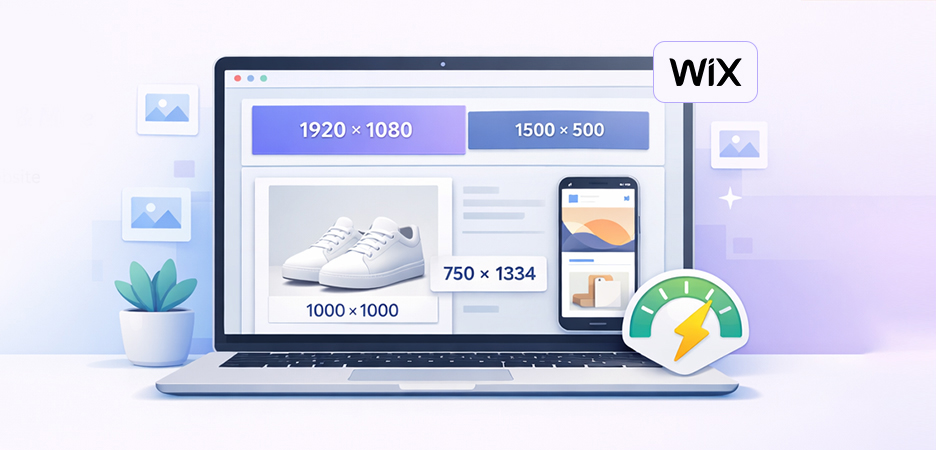
Here’s a quick overview of commonly recommended image dimensions for the Wix platform-
| Image Type | Recommended Size (px) | Notes |
|---|---|---|
| Full-width banners | 1920-2500 × 1080 | Ideal for hero sections |
| Product images | 1200 × 1200 | Square works best |
| Blog featured images | 1200 × 630 | Optimized for SEO |
| Gallery images | 1200-1500 on the longest side | Balance quality and speed |
| Logos | 300 × 300 | SVG preferred |
These dimensions are practical starting points. The goal is maximum clarity with minimum file size.
Wix Banner and Hero Image Size
Banner images are often the largest visuals on a Wix site, which makes them the most common speed problem.
For full-width banners, a width between 1920 and 2500 pixels works well on large screens while still scaling cleanly on smaller devices. Height depends on your layout, but keeping it under 1200 pixels helps reduce unnecessary file weight and scrolling.
Wix recommends 1200 × 630 pixels for Open Graph images used in social sharing. While that size works well for blog previews and featured images, hero banners typically require wider dimensions to span the full screen properly.
Avoid uploading ultra-wide photos straight from a DSLR. Resize them close to their display size and compress them before uploading.
Wix Product Image Size
For Wix Stores, consistency is more important than extreme image quality. Square images work best because they fit cleanly into product grids and adapt well across desktop and mobile screens.
A size of 1200 × 1200 pixels is ideal for most products. It keeps images sharp, supports zoom features, and avoids unnecessary file weight. You can go slightly larger for detail-heavy items, but anything over 2000 pixels usually slows pages without improving how the image looks.
Using the same aspect ratio for all product images prevents uneven rows, awkward cropping, and layout issues, creating a cleaner and more professional storefront.
Wix Blog Image Size
Blog images need to look good in several places at once, including inside the post, on blog listing pages, and in social media previews. That’s why size and format matter more than most people expect.
For in-content images, a width of around 1200 pixels keeps visuals sharp on desktop while still loading quickly on mobile. Featured images work best at 1200 × 630 pixels, which fits Wix’s blog layout and standard social sharing dimensions without awkward cropping.
Oversized images may look impressive, but they slow down every post. Compressing images and keeping them under a few hundred kilobytes helps your blog load faster and feel smoother to read.
Wix Image Size for Mobile Devices
Image Sizes on mobile matter a lot since most of the web traffic lands through mobile devices. Images that look fine on desktop can slow things down on mobile if they’re too large.
Wix uses responsive image delivery to serve smaller files to smaller screens, but uploading reasonably sized images still makes a difference. For images mainly viewed on mobile, keep the longest side under 1500 pixels. This helps pages load faster, saves mobile data, and keeps the experience smooth even on slower connections.
File Formats That Work Best on Wix
Choosing the right file format is just as important as image size. JPEG is ideal for photos because it keeps file sizes smaller while maintaining good quality, making it perfect for banners, blog images, and product photos. PNG works best for graphics that need transparency or sharp edges, though it creates larger files and should be used sparingly.
For logos and icons, SVG is the best option since it scales perfectly on all screen sizes without losing quality or adding extra weight. Wix also supports WebP , a modern format that delivers high-quality images at much smaller file sizes. When available, WebP is a smart choice for improving site speed and overall performance.
Wix Image Optimization and Compression Best Practices
Wix does apply image compression , but it works best when your images are already optimized. Uploading oversized files forces Wix to do extra work and can still hurt page speed.
Before uploading, resize images to match how they’ll actually display on your site. Then compress them using tools like Image Optimizer Pro to reduce file size without visible quality loss. This keeps pages fast on both desktop and mobile.
Using clear file names and adding alt text also improves SEO and accessibility by helping search engines and screen readers understand your images. Together, resizing, compression, and smart naming form the foundation of effective Wix image optimization.
Common Image Mistakes That Hurt Wix Performance
One of the biggest mistakes is uploading massive images and trusting Wix to handle everything. Another is mixing aspect ratios across galleries, which leads to messy layouts and unexpected cropping.
Ignoring mobile previews is another common issue. What looks perfect on a desktop might feel cramped or heavy on a phone.
Finally, skipping alt text and metadata leaves SEO value on the table.
Conclusion
Getting image sizes right on Wix isn’t about memorizing numbers. It’s about understanding how images affect speed, usability, and search performance. When you follow a practical Wix image size guide, resize before uploading, and use smart compression, your site feels faster and more polished across every device.
Small changes in how you handle images can have an outsized impact on how your site performs and how visitors experience it.
FAQs
What is the best image size for Wix websites?
Q2: What is the recommended Wix banner image size?
Q3: Does Wix compress images automatically?
Q4: What Is the Maximum Image Size Allowed in Wix?
Q5: What file format is best for Wix images?
Q6: Should I optimize images before uploading to Wix?
3 March, 2026
Leave a Comment
Ishan Makkar
He is a web performance specialist focused on image optimization and site speed. As the founder of Image Optimizer Pro, he helps businesses reduce image load times and improve Core Web Vitals. His work centers on delivering faster websites, better user experience, and measurable SEO gains without complex development.