
TL;DR: Discover the complete guide for optimizing Ecwid images with correct dimensions, compression, and formats, enabling responsive delivery to improve mobile performance, loading speed, SEO, and overall store performance.
Ecwid Image Optimization is one of the biggest factors influencing how fast your store loads and how many visitors convert into buyers. Slow, heavy, or low-quality visuals can hurt both speed and search rankings, especially on mobile. By applying smart techniques for Ecwid Image Compression and using advanced tools, you can improve your store’s performance.
In this guide, we’ll learn to optimize images for Ecwid, discovering the best image sizes and formats that Ecwid recommends. Learn to apply both manual and automatic compression methods to improve Ecwid mobile and desktop performance.
Impact of Image Optimization on the Ecwid Website
Image Optimization on your Ecwid store influences three major areas: page-load speed, user experience (UX)/conversion rates, and SEO.
Firstly, slower image load time increases bounce rates. With Ecwid, product pages often rely on multiple high-resolution visuals. Without optimizing images on Ecwid, your site can feel sluggish.
Secondly, image quality affects perception as weak visuals undermine trust and reduce conversions. Ecwid’s own blog says, “large files that load slowly can significantly slow down the loading speed, especially on a phone. If you don’t want your visitors to become impatient, you should reduce the size of your images.
Thirdly, optimized images support SEO. In the context of Ecwid, optimized ALT text, consistent dimensions, and fast-loading visuals all factor into improved store ranking. Ecwid’s support pages highlight how their SEO system handles image alt tags, but rely on you to deliver the images in good shape.
In short, implementing proper Ecwid image optimization isn’t optional; it directly supports speed, UX, conversions, and SEO.
Ecwid Image Size Guidelines: What Dimensions You Should Use
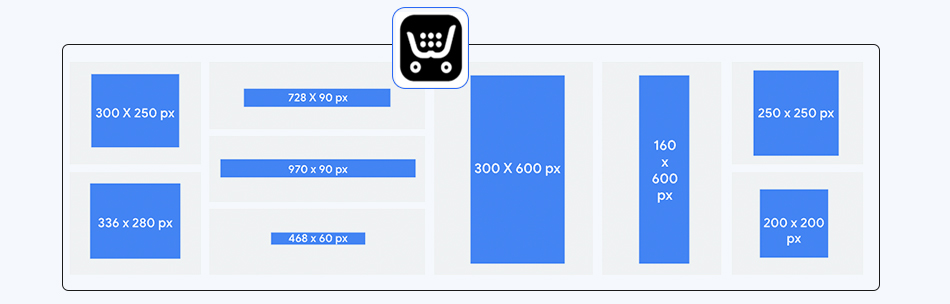
When it comes to Ecwid image size, there are no absolutely fixed requirements, but there are strongly recommended practices that you should follow to strike the right balance between quality and performance.
According to Ecwid’s support documentation, you can upload images up to 20 MB each, and Ecwid will automatically compress heavy images behind the scenes. More importantly, Ecwid recommends using at least 1000 px images (e.g., width = 1000 px) to ensure clarity on both desktop and mobile.
| Image Type | Recommended Dimensions / Guidelines | Notes / Source |
|---|---|---|
| Product Gallery / Product Images | 1000 px (width) for main images | Ecwid recommends “at least 1000px size images.” |
| File Size for Product Images | Target around 200 kB for 1000px images where possible. | As per Ecwid’s optimization guidance and , based on common performance best practices. |
| Category / Featured Category Images | Minimum width: 650px, ideally 1000px | Ecwid suggests 650px as a base; 1000px is “the best.” |
| Aspect Ratios (Product Images) | 1:1, 3:4, 4:3, 2:3, 3:2 | Ecwid recommends consistent aspect ratios to avoid visual clutter. |
| Storefront / Zoom-Enabled Images | 1000 – 1500 px width (if using zoom) | Tools like Magic Toolbox for Ecwid recommend 1000 -1500px width for detailed zoom. |
Practical Guideline
- For product gallery main images: aim for around 1000×1000 px (square 1:1) or the nearest consistent ratio you prefer.
- File size: target around or below 200 kB, where feasible without visible deterioration.
- Ensure consistent aspect ratio across products.
- For banner or cover images (on Ecwid Instant Site), recommended sizes include 1400×1050px or larger.
By controlling the image size (dimensions) and file size proactively, you give your store a strong base for speed and clarity.
Best Image Formats for Ecwid
Choosing the best image format for Ecwid is another key lever in your optimization strategy, one that often gets overlooked.
Ecwid supports JPG, PNG, and GIF in RGB colour mode for product images, and explicitly allows WebP as well. Here’s a breakdown of when each makes sense:
- JPEG (JPG): Ideal for photographs and product images without transparent backgrounds. Offers strong compression opportunities (lossy) and typically smaller file size.
- PNG: Better for graphics, images with text overlays, brand marks, or transparent backgrounds. But PNGs tend to be larger, and Ecwid flags that “Hi-res PNG images with a transparent background may load slowly on category pages or storefront page.”
- WebP: A newer format that often delivers a significantly smaller file size for comparable visual quality. As Ecwid supports WebP, migrating your product images to WebP (where supported by visitor browsers) can improve Ecwid Image Compression and performance.
In short, for most product images, use JPEG by default, but for brand graphics or transparent imagery, use PNG sparingly, and implement WebP whenever possible. Make sure to test visual quality across devices/browsers.
Practical Image Optimization Techniques for Ecwid Stores

Implement these practical strategies of image optimization for Ecwid and boost conversions of your Ecwid store:
1. Compress Ecwid Images Efficiently
Although Ecwid provides a solid foundation for handling images, achieving truly optimized performance often requires a dedicated tool for compression and fine-tuning. Image Optimizer Pro for Ecwid is built to work with Ecwid stores, helping you compress images, videos, and even minify CSS/JS without degrading quality.
There are two smart modes in Image Optimizer Pro – Automatic Compression and Manual Compression, each suited to different workflows and needs.
Option 1: Automatic Compression (Recommended)
Automatic mode in Image Optimizer Pro is the most efficient and reliable way to compress images on your Ecwid store.
How it works:
Step 1: Install Image Optimizer Pro from the Ecwid App Store.
Step 2: Go to the “Optimize Image Section” in the tool’s dashboard.
Step 3: Run optimization and get your images compressed in one go.
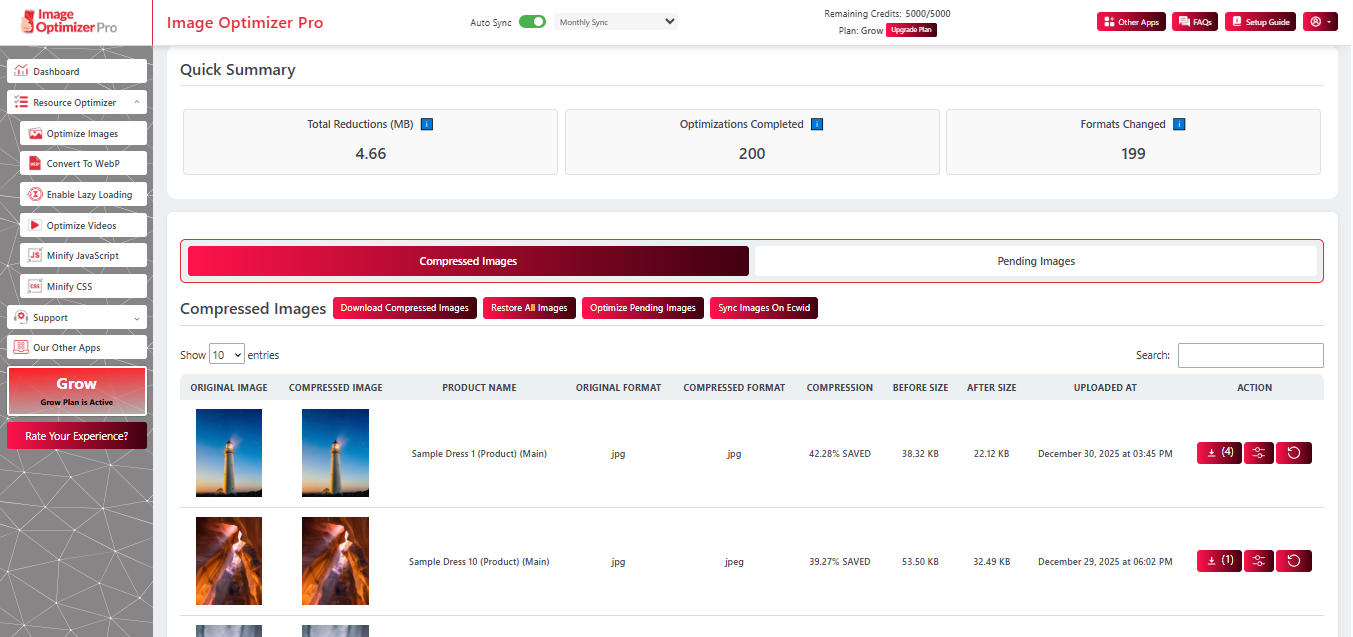
Within minutes, your images are optimized for both desktop and mobile. The process runs automatically, keeping your store fast without any manual effort when new content is added.
Benefits:
- Significant file-size reduction – Image Optimizer Pro claims up to 80% compression in many cases (depends on image type and size).
- No visible loss in image quality, as the tool balances compression smartly.
- Once set up, minimum manual work is needed. The workflow stays automated, helping to keep your Ecwid store fast and responsive.
- Choose your preferred settings – you can select between automatic and manual compression, define resizing options, or instruct the app to auto-convert images to modern formats like WebP.
- Image Optimizer Pro also offers auto-sync: new images you upload to Ecwid are automatically detected and optimized.
- It supports backup and restoration, so you can revert to the original files if needed.
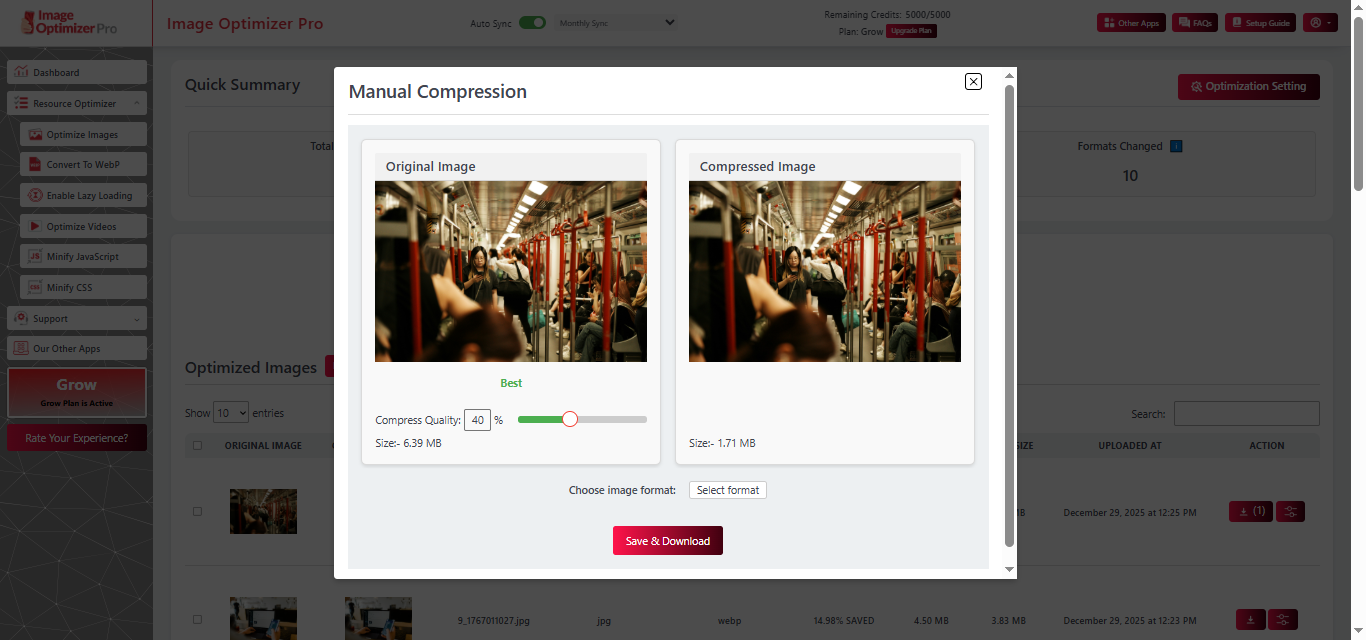
Option 2: Manual Compression
If you prefer total control over each image, especially for premium products, hero visuals, or precise creative assets, manual compression is the way to go. It will benefit you by providing:
- Precise control over image quality and visual fidelity.
- Ability to handle “special” images (e.g., high-detail, zoom-in shots) in a way that preserves brand perception.
- No over-compression risk, because you decide exactly where to draw the line.
2. Maintain Aspect Ratio Consistency
Using consistent aspect ratios like 1:1 or 3:4 keeps your Ecwid storefront visually balanced, prevents awkward cropping, and avoids layout shifts. This ensures a clean, professional product grid that loads smoothly.
3. Clear Alt-text and Descriptive File Names
Although Ecwid auto-generates ALT text from product names, adding descriptive filenames and improving ALT tags enhances accessibility, helps search engines understand your images better, and improves your product visibility in image search.
4. Use Responsive Images
Serve images in sizes that match users’ devices so mobile visitors aren’t forced to download oversized desktop photos. Responsive delivery reduces load time, improves performance scores, and creates a faster, smoother mobile shopping experience.
5. Leverage Lazy-Loading Where Supported
Lazy loading delays the loading of images not immediately visible on-screen, reducing initial page weight. This speeds up the first render, improves Core Web Vitals, and helps mobile users access content faster without unnecessary data usage.
6. Remove Unused Images
Old, un-displayed, or abandoned image files still add to your media library and potentially slow backups/serve time. According to speed-guides, “remove items that are not being used” helps with Ecwid speed optimization.
7. Test Performance Regularly
Use tools like Google PageSpeed Insights, GTmetrix, or WebPageTest to audit your Ecwid store. Many speed guides emphasize image weight as a top factor in the Core Web Vitals impact.
By treating image optimization as part of your conversion-funnel strategy rather than an afterthought, you empower faster load times, better mobile UX, more consistent visuals, and improved SEO signals.
How to Optimize Ecwid Images for Mobile Users

Given that a large portion of shoppers access stores via mobile devices, mobile optimization is non-negotiable. For your Ecwid store, here are the key mobile-specific Ecwid image optimization steps:
Serve Smaller Dimensions For Mobile Viewports:
While you might upload a 1000×1000 px full-size image, ensure the mobile variant is sized appropriately (e.g., 600px width) so that data usage and load time are reduced.
Use Modern Formats Like WebP:
Many modern mobile browsers support WebP. By converting product images to WebP, especially for mobile delivery via image-optimizer apps, you save significant bytes.
Enable Responsive Image Elements:
Make sure your theme/widget uses HTML <img srcset> or Ecwid’s built-in responsive delivery so smaller images are served to mobile users.
Avoid Transparent PNGs or Huge Hero Images on Mobile:
Transparent PNGs are flagged by Ecwid as slower loading on category pages. Avoid a large hero image or transparent PNG for optimal mobile performance.
Minimize The Number of Images Above The Fold:
On mobile product pages, display one primary image and defer additional gallery images until scroll. Reducing initial HTTP requests improves mobile first-paint.
Test on Real Devices:
Use slow mobile network simulations (e.g., 3G/4G) and measure how your images impact initial interactive moments. Address any image-driven bottlenecks.
Use Lazy-Load for Secondary Mobile Images:
If your Ecwid theme or plugin supports lazy-loading, ensure it triggers for off-screen mobile images so that the initial viewport loads faster.
By prioritizing mobile-specific image strategy within your broader Ecwid image optimizer plan, you reduce bounce, improve mobile conversion rates, and adhere to Google’s mobile-first indexing standards.
Conclusion
Effective Ecwid Image Optimization is one of the most under-leveraged yet high-impact improvements you can make for your Ecwid store. By managing Ecwid image size, format, and image compression levels, you set a foundation for faster loads, higher conversions, and better SEO.
Whether you’re launching a new store or scaling an existing one with hundreds or thousands of SKUs, image optimization should be built into your workflow, not treated as an afterthought. Take the time to implement Image Optimization for Ecwid from the start, monitor performance continuously, and you’ll harvest benefits in speed, user experience, and revenue.
FAQs
Q1 – What is the recommended image size for Ecwid?
Q2 – Does Ecwid support WebP images for faster loading?
Q3 – How can I reduce image file size without losing quality for Ecwid?
- Use automatic compression via a dedicated Ecwid app (e.g., SEO Speed & Image Optimizer) that bulk-optimizes images and converts formats where suitable.
- Manually resize and compress images on Ecwid yourself: reduce dimensions to 1000px width if the original is far larger, choose an appropriate format (JPEG for photos, WebP when possible), and use compression tools to target 200 kB for 1000px images. These approaches align with the Ecwid blog and support guidance.
Q4 – Why is image optimization important for Ecwid store speed?
Q5 – How often should I audit my Ecwid store for image optimization?
6 January, 2026
Leave a Comment
Ishan Makkar
He is a web performance specialist with hands-on experience optimizing websites for speed, media efficiency, and user engagement. As the founder of Website Speedy and Image Optimizer Pro, he has helped businesses across multiple industries improve load times, strengthen SEO, and reduce bounce rates. His work focuses on creating reliable, data-driven optimization solutions that deliver measurable results and build long-term digital trust.