
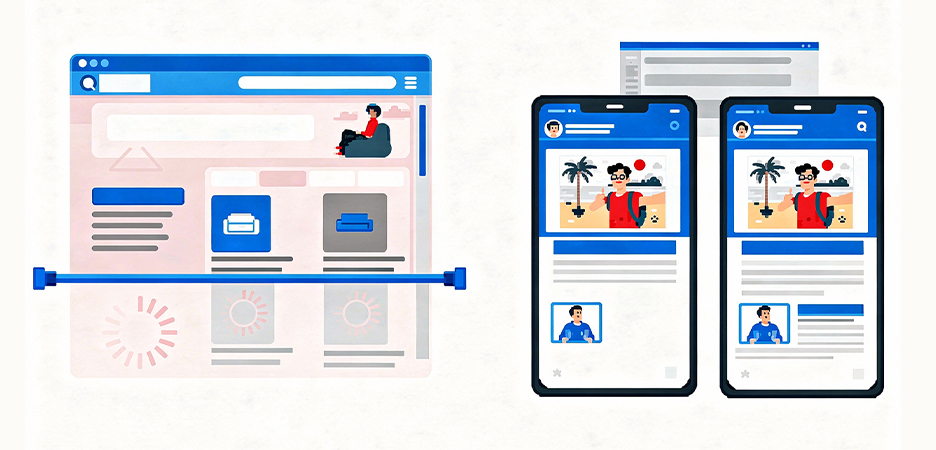
TL;DR: Preloading and lazy loading images solve different problems. Preloading helps important images load faster, especially those visible right away, while lazy loading delays images that aren’t immediately needed. When used correctly, both work together to improve page speed, Core Web Vitals, and overall user experience without slowing the site down.
Images are essential for modern websites. They improve visual appeal, enable faster communication of ideas, and increase user engagement. However, images are also one of the most common reasons websites load slowly. Large file sizes, poor loading strategies, and incorrect prioritization often lead to performance issues that affect both users and search rankings.
This is why understanding preloading vs lazy loading images is so important. These two techniques control when and how images load in the browser, directly impacting page speed, Core Web Vitals, and SEO. When implemented incorrectly, they can cause delayed rendering, layout shifts, and even indexing problems. But with the correct knowledge and implementation, they significantly improve perceived performance and user experience.
In this guide, we’ll explore preloading vs lazy loading images in depth and explain the use cases of both, helping you discover the right choice for your website.
What Is Image Preloading?
Image preloading is a performance optimization technique that instructs the browser to fetch specific images as early as possible, even before they are discovered during normal HTML or CSS parsing. This is done using the <link rel="preload"> tag inside the HTML <head>.
Preloading helps browsers understand which images are critical to the initial page experience and should be prioritized in the loading queue. In the preload images vs lazy load debate, preloading focuses on speeding up critical rendering, not deferring resources.
This technique is especially important for images that directly affect Largest Contentful Paint (LCP) and above-the-fold visibility. Without preloading, browsers may discover these images late, causing delayed rendering and poor Core Web Vitals scores.
Common Use Cases for Image Preloading
Image preloading is best used for images that users must see immediately after the page loads:
- Hero images on homepages or landing pages
- Above-the-fold images are visible without scrolling
- Images affecting LCP, such as banners or featured visuals
- Background images loaded via CSS that browsers may discover late
- Logos or brand images that define the first impression
When used correctly, preloading ensures that critical images load without delay, improving perceived performance and preventing issues caused by render-blocking images.
Pros and Cons of Image Preloading
| Pros of Image Preloading | Cons of Image Preloading |
|---|---|
| Improves Largest Contentful Paint (LCP) | Overuse can increase network congestion |
| Speeds up above-the-fold image rendering | Preloading too many images wastes resources |
| Prevents late discovery of critical images | Incorrect URLs can cause preload failures |
| Reduces render-blocking image delays | Not suitable for below-the-fold images |
| Enhances perceived page speed and UX | Requires careful prioritization |
What are lazy-loading images?
Lazy loading images is a technique that delays loading images until they are about to enter the user’s viewport. Instead of loading all images during the initial page load, the browser waits until the user scrolls near an image before downloading it.
This approach significantly reduces initial page weight and improves load times, especially on pages with many images. Native lazy loading uses the loading="lazy" attribute, while JavaScript-based lazy loading solutions offer advanced control over loading behavior.
From a lazy loading images performance perspective, this method is ideal for long pages where users may not scroll through all the content. However, lazy loading must be implemented carefully to avoid harming SEO or Core Web Vitals.
Common Use Cases for Lazy Loading Images
Lazy loading works best for images that are not immediately visible or essential:
- Below-the-fold images in blog posts
- Product thumbnails in long listings
- Images in galleries or carousels
- Decorative or supporting visuals
- Images far down category or archive pages
Using lazy loading in these scenarios helps browsers focus on critical content first, improving overall page performance and user experience.
Pros and Cons of Lazy Loading Images
| Pros of Lazy Loading Images | Cons of Lazy Loading Images |
|---|---|
| Reduces initial page load time | Can hurt LCP if used incorrectly |
| Improves lazy loading images performance | Not suitable for above-the-fold images |
| Saves bandwidth and mobile data | Poor setup may affect image indexing |
| Improves Time to Interactive (TTI) | JavaScript-based methods add complexity |
| Ideal for image-heavy pages | Can cause layout shifts if dimensions are missing |
Preloading vs Lazy Loading Images: Key Differences Explained
The difference between preloading and lazy loading images lies in priority and timing.
In the preload images vs lazy load comparison, neither method is better on its own. Each serves a specific purpose. A well-optimized site uses both techniques strategically. You can get more clarity about lazy loading and preloading with this quick comparison table.
| Factor | Image Preloading | Lazy Loading Images |
|---|---|---|
| Loading priority | High priority | Low priority |
| When images load | Immediately during page load | Only when about to enter the viewport |
| Primary purpose | Speed up critical rendering | Reduce initial page load time |
| Best for | Hero and above-the-fold images | Below-the-fold and non-critical images |
| Impact on LCP | Improves LCP | Can hurt LCP if misused |
| Effect on performance | Faster first paint and visibility | Better overall page efficiency |
| SEO impact | Positive when used selectively | SEO-friendly if implemented correctly |
| Common mistake | Preloading too many images | Lazy loading critical images |
When to Preload Images
Understanding when to preload images is essential for effective performance optimization. Preloading should be used selectively and only for images that play a critical role in shaping the user’s first impression of the page. These images must load instantly to avoid visible delays, blank spaces, or layout shifts.
You should preload images when:
- The image is visible immediately on page load, such as content that appears without scrolling
- The image is part of the hero section, which often defines the main message of the page
- The image is the Largest Contentful Paint (LCP) element, directly affecting Core Web Vitals scores
- The image is a background image loaded via CSS, which browsers may discover late
- Delayed loading would harm user experience, such as causing flickering or late rendering
By preloading these images, you ensure the browser prioritizes them early in the loading process. This prevents late discovery of important visuals, reduces rendering delays, and helps maintain strong Core Web Vitals performance.
How to Implement Image Preloading (Step by Step)
Image preloading forces the browser to load critical images early, improving LCP and above-the-fold rendering.
Step 1: Identify Images That Need Preloading
Preload images that:
- Are visible immediately on page load
- Are hero images
- Are the LCP elements
- Are CSS background images
- Impact the first user impression
Avoid preloading too many images.
Step 2: Add the Preload Tag in the HTML Head
Use the <link rel="preload"> tag to tell the browser to fetch the image early.
Example:
<link rel="preload" as="image" href="/images/hero-banner.webp">This should be placed inside the
<head> section.
Step 3: Match Preload URL with the Actual Image Source
Ensure the preloaded image URL exactly matches the image used on the page.
<img src="/images/hero-banner.webp" alt="Hero image" width="1200" height="600">Mismatch between preload and actual image wastes resources.
Step 4: Preload Responsive Images (If Needed)
If using responsive images, preload the correct size for the device.
<link rel="preload"
      as="image"
      href="/images/hero-mobile.webp"
      media="(max-width: 768px)">
This prevents loading unnecessarily large images on mobile.
Step 5: Avoid Overusing Preload
Common preload mistakes:
- Preloading below-the-fold images
- Preloading too many images
- Preloading images that don’t affect LCP
Important: Preload only what is essential.
When to Lazy Load Images
Knowing when to lazy-load images allows you to reduce unnecessary network usage without compromising usability. Lazy loading is best applied to images that are not essential during the initial page load and can wait until the user scrolls closer to them.
Lazy loading works best when:
- Images are located below the fold and are not immediately visible
- Images are decorative or supplementary, rather than core content
- Pages contain long-form content, such as blogs or guides
- Users may never scroll to certain sections, making early loading unnecessary
From a lazy loading images performance perspective, this approach improves speed by focusing browser resources on visible content first. It is especially effective on mobile devices, where bandwidth, memory, and processing power are limited, helping pages feel faster and more responsive.
How to Implement Lazy Loading Images (Step by Step)
Lazy loading images means loading images only when they are about to appear in the user’s viewport, instead of loading everything at once. This improves page speed and reduces unnecessary network usage.
Step 1: Identify Which Images Should Be Lazy Loaded
Before implementation, decide what not to load immediately.
Lazy load images that:
- Are below the fold
- Are decorative or supplementary
- Appear far down long pages
- Are part of galleries or product listings
Do not lazy load:
- Hero images
- Above-the-fold images
- Images affecting LCP
Step 2: Use Native Lazy Loading (Recommended Method)
The easiest and most SEO-friendly method is native lazy loading supported by modern browsers.
How to implement
Add theloading="lazy" attribute to your image tag:
<img src="example.jpg" alt="Sample image" loading="lazy" width="600" height="400">Step 3: Always Define Image Dimensions
To prevent layout shifts and CLS issues, always define image dimensions.
<img
    src="blog-image.jpg"
    alt="Blog image"
    loading="lazy"
    width="800"
    height="500">
This ensures space is reserved before the image loads.
Step 4: Test Lazy Loading Behavior
After implementation:
- Scroll the page and confirm images load when they come into view
- Test with Google PageSpeed Insights
- Check that hero images are not lazy-loaded
This confirms lazy loading is working without harming performance.
Step 5: Optional – JavaScript Lazy Loading (Advanced)
Use JavaScript lazy loading only if native support is insufficient (e.g., background images or complex layouts).
Best used for:
- Background images
- Older browser support
- Advanced animations
Keep JavaScript lightweight to avoid performance penalties.
Preloading Images: Best Practices
Preloading is powerful, but it must be used carefully. Its goal is to help the browser load only the most important images early, not everything on the page. Misusing preload can actually slow down performance instead of improving it.
-
Preload only critical images
Focus on images that directly affect the user’s first impression, such as hero images or visuals that determine LCP. These images should appear immediately when the page loads.
-
Avoid preloading images below the fold
Preloading images that users won’t see right away wastes bandwidth and competes with more important resources. Below-the-fold images are better handled with lazy loading.
-
Use correct image URLs and formats
The preloaded image URL must exactly match the image used on the page. Using modern formats like WebP or AVIF helps reduce file size while maintaining quality.
-
Combine preloading with responsive images
Preload the most appropriate image size for each device. This prevents mobile users from downloading unnecessarily large images and improves overall performance.
-
Monitor LCP impact after implementation
After preloading, track LCP in tools like PageSpeed Insights or Search Console. Preloading should result in faster rendering; if it doesn’t, adjustments may be needed.
Overusing preload can overwhelm the browser’s loading queue and delay other important resources like CSS or JavaScript. That’s why restraint and careful selection are crucial.
Lazy Loading Images: Best Practices
Lazy loading is one of the most effective ways to improve page speed, especially on image-heavy pages. However, incorrect implementation can lead to SEO issues and poor Core Web Vitals scores.
-
Never lazy-load above-the-fold images
Images visible on initial page load should always load immediately. Lazy loading these images delays rendering and negatively affects LCP.
-
Always define width and height attributes
Specifying image dimensions helps the browser reserve space before the image loads. This prevents layout shifts and improves CLS scores.
-
Test lazy loading impact on LCP
After enabling lazy loading, verify that LCP images are still loading eagerly. Lazy loading should not interfere with critical rendering metrics.
-
Ensure images load without user interaction
Images should load automatically as users scroll. Requiring clicks, hovers, or other interactions can prevent proper indexing and harm usability.
-
Monitor lazy loading images SEO impact
Check Search Console and page rendering tools to ensure images are discoverable and rendered correctly. From a lazy loading images SEO perspective, Google supports lazy loading as long as content loads normally and remains accessible to crawlers.
When implemented properly, lazy loading improves performance without compromising SEO, making it an essential technique for modern websites.
Conclusion
The choice between preloading vs lazy loading images is not about preference, it’s about intent. Preloading ensures that critical images appear instantly, while lazy loading reduces unnecessary downloads and improves overall performance.
By understanding when to preload images, when to lazy load images, and how to avoid render-blocking images, you can significantly improve page speed, user experience, and SEO performance. When implemented together, preloading and lazy loading form a powerful image optimization strategy that benefits both users and search engines.
FAQs
1. What is the difference between preloading and lazy loading images?
2. Should hero images be lazy loaded?
3. When should you preload images?
4. Can you use preload and lazy loading together?
5. Is lazy loading bad for SEO?
26 March, 2026
Leave a Comment
Ishan Makkar
He is a web performance specialist with hands-on experience optimizing websites for speed, media efficiency, and user engagement. As the founder of Website Speedy and Image Optimizer Pro, he has helped businesses across multiple industries improve load times, strengthen SEO, and reduce bounce rates. His work focuses on creating reliable, data-driven optimization solutions that deliver measurable results and build long-term digital trust.