
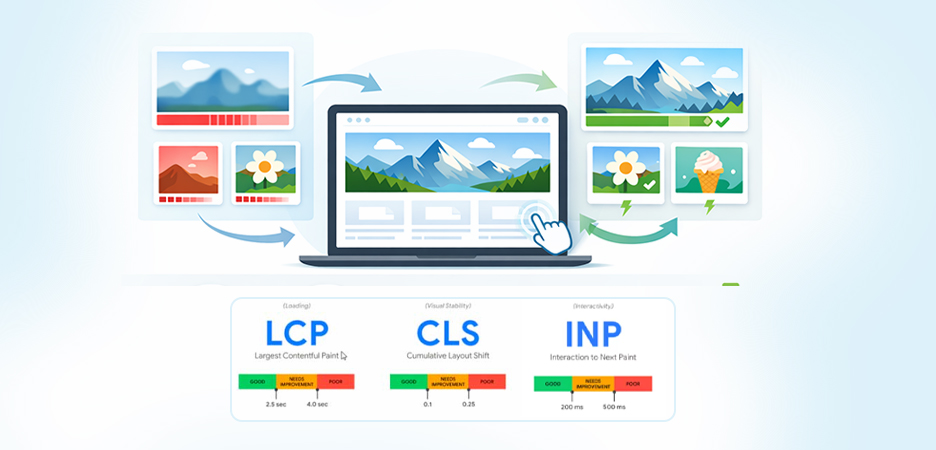
TL;DR: Web images take more than half of a website’s page, increasing the need to optimize them. Image optimization not only reduces page weight but also improves Core Web Vitals by reducing load time (LCP), preventing layout shifts (CLS), and enhancing responsiveness (INP), leading to faster websites, better UX, higher rankings, and improved conversions.
Website speed and user experience are no longer optional, they are confirmed Google ranking factors. With the Page Experience update, Core Web Vitals (CWV) now measure how users actually experience your site, not just how fast it loads in theory.
Among all performance factors, image optimization impacts Core Web Vitals more than most site owners realize. Images often account for 50–70% of total page weight, define the largest visible elements, and influence layout stability and responsiveness.
Unoptimized images slow down loading, cause layout shifts, and block user interactions. Properly optimized images, however, can significantly improve Largest Contentful Paint (LCP), Cumulative Layout Shift (CLS), and Interaction to Next Paint (INP), leading to better rankings, stronger engagement, and higher conversions.
This guide explains how images affect each Core Web Vital and how to optimize them for real-world performance gains.
Why Image Optimization Is Critical for Core Web Vitals?
Images often account for more than half of the total page weight, especially on content-heavy and e-commerce websites. Because they load early, take up large visual space, and often require JavaScript handling, images directly influence how fast and stable a page feels to users.
Image optimization and Core Web Vitals go hand in hand. When images are optimized correctly, pages load faster, layouts remain stable, and interactions feel smooth. When they’re not, even a well-coded website can fail CWV assessments.
What Are Core Web Vitals and How Do They Matter?
Core Web Vitals are a set of performance metrics introduced by Google to measure real-world user experience on a website. Instead of focusing only on technical speed, these metrics evaluate how users actually perceive a page while it loads and responds to interactions.
The three Core Web Vitals metrics are:
- Largest Contentful Paint (LCP): Measures loading performance by tracking how long it takes for the largest visible element, often a hero image or banner, to appear on the screen.
- Cumulative Layout Shift (CLS): Assesses visual stability by calculating how much content unexpectedly shifts during page load.
- Interaction to Next Paint (INP): Evaluates responsiveness by measuring how quickly a page reacts after a user interacts with it, such as clicking a button or tapping a link.
Google’s benchmarks:
- LCP: ≤ 2.5s
- CLS: ≤ 0.1
- INP: ≤ 200ms
Google uses these metrics to determine whether a page feels fast, stable, and responsive to users. Pages that score poorly on Core Web Vitals often experience higher bounce rates, reduced engagement, and lower conversion rates, particularly on mobile devices where performance issues are more noticeable.
Images play a critical role in all three metrics. They frequently serve as the largest visible element affecting LCP, can cause layout shifts if dimensions aren’t defined, and may delay user interactions if they overload the browser’s main thread. This is why optimizing images is essential for achieving strong Core Web Vitals scores and delivering a smooth, high-quality user experience.
How Image Optimization Impacts Largest Contentful Paint (LCP)
Image optimization plays a decisive role in Largest Contentful Paint because the LCP element is most often a hero image, banner, or featured visual. When this image is large, slow to load, or poorly prioritized, it directly delays when the page appears “fully loaded” to users and search engines.
What Is LCP and Why Images Often Define It
LCP measures how long it takes for the largest visible element (usually a hero image or featured banner) to render on the screen. On most websites, this element is an image. As images frequently define the LCP element, optimizing the hero image delivers the fastest performance gains.
In many real-world audits, improving a single image reduces LCP by 30–60% without touching JavaScript or server code.
If the image is heavy, delayed, or improperly loaded, the LCP score suffers, regardless of how fast the rest of the page loads.
How Unoptimized Images Slow Down LCP
Unoptimized images are one of the most common reasons websites struggle with poor Largest Contentful Paint (LCP) scores. Since LCP measures how quickly the main visual element appears on the screen, any delay in loading that element directly increases LCP time.
- Large image file sizes: Bigger images significantly increase download time, especially for users on slower mobile networks. When the browser has to fetch heavy images, it takes longer to render, pushing LCP beyond Google’s recommended threshold.
- Oversized images: These can further worsen the problem. Serving desktop-sized images to mobile devices wastes bandwidth and forces the browser to download more data than necessary. Even after downloading, the browser still needs extra time to resize and process these images before displaying them.
- Render-blocking image requests: If critical images are loaded late, requested without priority, or blocked by other resources like CSS or JavaScript, the browser cannot paint the largest element early in the loading process.
Additionally, using incorrect or outdated image formats, such as large JPEGs or PNGs, increases decoding time. These formats require more processing power compared to modern formats like WebP or AVIF, delaying when the image can be rendered on the screen.
Because images so often define the LCP element, optimizing their size, format, and loading behavior is usually the fastest and most impactful way to improve LCP and overall Core Web Vitals performance.
Image Optimization Techniques to Improve LCP
Improving LCP through image optimization focuses on ensuring the most important visual content loads as quickly and efficiently as possible. By optimizing image size, format, and loading priority, you can significantly reduce LCP time and improve perceived page speed.
- Proper Image Sizing and Compression
Serving images larger than required is one of the most common performance mistakes. Always resize images to match their display dimensions and compress them to reduce file size without visible quality loss.
Smaller files load faster, decode quicker, and improve LCP significantly. - Next-Gen Image Formats (WebP, AVIF)
Modern formats like WebP and AVIF deliver high-quality visuals at much smaller file sizes than JPEG or PNG. Switching to next-gen formats can reduce image weight by 30–70%, directly improving LCP. - Preloading Hero Images
If a hero image defines your LCP, it should be prioritized. Preloading ensures the browser fetches it early, preventing delays caused by render-blocking resources. - Responsive Images and LCP Performance
Responsive images ensure the browser downloads the correct size image for each device. This prevents mobile users from loading unnecessarily large desktop images and improves LCP across screen sizes.
How Images Cause Cumulative Layout Shift (CLS)
Images are the culprit behind layout instability during page load. When image space isn’t reserved in advance or images load dynamically, they can push surrounding content out of place, resulting in unexpected layout shifts and poor CLS scores.
Understanding CLS and Visual Stability
CLS measures how much content moves unexpectedly while the page loads. Even small shifts can frustrate users and lead to accidental clicks.
Images are one of the leading causes of CLS issues.
Why Images Are a Major Cause of CLS Issues
CLS often occurs when:
- Image dimensions aren’t defined
- Images load after the surrounding content
- Ads and dynamic images push content downward
Without reserved space, browsers reflow the layout once the image loads, creating visual instability.
Image Optimization Best Practices to Prevent CLS
Preventing CLS requires ensuring that images do not disrupt the page layout as they load. By reserving space for images and maintaining consistent dimensions, you can keep layouts stable and deliver a smoother visual experience for users.
- Always Define Image Width and Height
Specifying width and height allows browsers to reserve space before the image loads, preventing layout shifts. - Using Aspect Ratio Boxes
CSS aspect-ratio boxes help maintain a consistent layout structure even before images load, ensuring visual stability. - Handling Ads, Lazy Images, and Dynamic Content
Ads and lazy-loaded images must also reserve space. Dynamic image insertion without placeholders is a common CLS pitfall that should be avoided.
Image Optimization’s Role in Interaction to Next Paint (INP)
While images don’t directly handle user interactions, they can significantly influence how responsive a page feels. Heavy or poorly optimized images consume main-thread resources, delaying input processing and negatively impacting Interaction to Next Paint (INP).
What Is INP and How Images Affect Interactivity
INP measures how quickly a page responds after a user interacts with it. While images don’t directly handle clicks, they influence INP by affecting main-thread availability. Although images do not directly handle user interactions, heavy image decoding competes for main-thread resources, delaying input handling. This is especially noticeable on low-powered mobile devices, where large images can push INP beyond acceptable thresholds.
How Heavy Images Block the Main Thread
Large images require decoding and rendering, which can block the browser’s main thread. This delays interactions like clicks, taps, and scrolling, hurting INP.
Optimizing Images to Improve INP
Optimizing images helps reduce the processing workload on the browser, allowing user interactions to be handled more quickly. By minimizing image decoding and rendering overhead, pages remain responsive and achieve better Interaction to Next Paint (INP) scores.
- Lazy Loading Non-Critical Images
Lazy loading offscreen images reduces initial workload and keeps the main thread free for user interactions. - Reducing JavaScript Image Handling
Avoid excessive JavaScript-based image manipulation, sliders, or animations that add processing overhead. - Asynchronous Loading for Image Resources
Asynchronous loading prevents images from blocking critical tasks, improving responsiveness and INP scores.
Responsive Images and Their Impact on Core Web Vitals
Responsive images ensure the browser delivers the most appropriate image size for each device and screen resolution. This reduces unnecessary data transfer, improves loading speed, and helps maintain strong Core Web Vitals performance, especially on mobile.
What Are Responsive Images
Responsive images adapt to different screen sizes, resolutions, and devices using flexible delivery techniques.
Using srcset and sizes correctly
The srcset and sizes attributes help browsers select the most appropriate image version, preventing overloading and improving performance.
Responsive Images for Mobile-First Core Web Vitals
Since Google uses mobile-first indexing, responsive images are essential for maintaining strong mobile Core Web Vitals scores, especially on slower networks.
Best Image Optimization Techniques for Core Web Vitals
Optimizing images effectively requires more than reducing file size. The right combination of formats, compression methods, delivery strategies, and automation plays a major role in improving LCP, CLS, and INP scores.
Choosing the Right Image Format for Performance
Different image file formats are designed for different use cases, and choosing the wrong one can negatively impact Core Web Vitals. WebP and AVIF are the best options for most photographs and complex visuals because they deliver high quality at significantly smaller file sizes compared to traditional formats like JPEG and PNG. Smaller files load faster and decode more efficiently, directly benefiting LCP and INP.
SVG is ideal for icons, logos, and simple illustrations because it is lightweight, resolution-independent, and scales perfectly across devices without increasing file size. PNG should be used only when transparency or high-detail raster graphics are required, as it typically produces larger files. Selecting the right format ensures faster delivery, better visual quality, and improved CWV performance.
Lossy vs Lossless Compression for CWV
Compression is essential for reducing image weight, but the approach matters. Lossy compression removes unnecessary image data that users can’t easily perceive, resulting in much smaller file sizes and faster loading times. This makes it the preferred choice for most website images, especially those affecting LCP.
Lossless compression, on the other hand, preserves all original image data while still reducing file size to some extent. It’s best suited for branding-critical images, graphics with text, or visuals where even minor quality loss is unacceptable. Balancing lossy and lossless compression helps maintain visual quality while achieving optimal Core Web Vitals scores.
Image CDNs and Caching Strategies
Image Content Delivery Networks (CDNs) play a crucial role in improving website performance. By serving images from servers geographically closer to users, CDNs significantly reduce latency and improve loading times. This is especially beneficial for global websites with audiences across multiple regions.
Advanced image CDNs can also dynamically resize, compress, and convert images based on device type and network conditions. Combined with effective browser caching strategies, image CDNs ensure repeat visitors experience faster loads, reduced server strain, and more consistent Core Web Vitals performance.
Automating Image Optimization for Scalable Performance
Manual image optimization is difficult to maintain, especially for large websites or platforms with frequent content updates. Automation ensures every image, new or existing, is consistently optimized without relying on human intervention.
Automated image optimization handles tasks such as resizing, compression, format conversion, lazy loading configuration, and responsive delivery. This approach is essential for maintaining strong Core Web Vitals scores at scale, preventing performance regressions, and ensuring long-term website speed and reliability.
Common Image Optimization Mistakes That Hurt Core Web Vitals
Even with good intentions, many websites make image optimization mistakes that negatively impact Core Web Vitals. Understanding these issues helps prevent performance regressions and ensures long-term CWV stability.
Over-Compressing Images
While compression is essential for performance, excessive compression can be counterproductive. Over-compressed images often appear blurry, pixelated, or distorted, which reduces perceived quality and user trust, especially on product pages and landing pages. Poor visual quality can increase bounce rates and lower engagement, indirectly affecting SEO performance. The goal should always be balanced compression, where file size is reduced without noticeable loss in quality.
Lazy Loading Above-the-Fold Images
Lazy loading is a powerful optimization technique, but applying it incorrectly can hurt performance. When above-the-fold or LCP images are lazy loaded, the browser delays fetching them until after initial page load, which directly worsens LCP scores. Critical images that appear immediately on page load should be prioritized and excluded from lazy loading to ensure fast visual rendering.
Ignoring Mobile Image Optimization
Mobile users are the most affected by heavy images due to slower networks and limited processing power. Serving large desktop images to mobile devices increases load time, data usage, and decoding cost, leading to poor mobile Core Web Vitals scores. Without mobile-specific image optimization, such as responsive images and proper sizing, websites risk failing Google’s mobile-first performance expectations.
Using Images Instead of CSS Where Possible
Many websites use images for simple design elements like buttons, icons, gradients, or shadows. This approach increases page weight and HTTP requests unnecessarily. CSS-based elements are significantly lighter, faster to render, and more responsive, helping improve LCP and INP while reducing overall page complexity.
Tools to Measure Image Impact on Core Web Vitals
Measuring image performance is just as important as optimizing images. The following tools help identify issues and validate improvements.
Google PageSpeed Insights
Google PageSpeed Insights analyzes real-world and lab performance data to highlight image-related issues affecting Core Web Vitals. It flags problems such as oversized images, inefficient formats, missing dimensions, and render-blocking resources. The tool also provides actionable recommendations to improve LCP, CLS, and INP through better image optimization.
Lighthouse and Chrome DevTools
Lighthouse and Chrome DevTools offer deeper technical insights into how images affect rendering behavior. They help identify the LCP image, uncover sources of layout shifts caused by images, and analyze main-thread blocking during image decoding. These tools are especially useful for developers who need to debug performance issues at a granular level and validate fixes before deployment.
FAQs
Q1: How do images affect Core Web Vitals?
Q2: Can image optimization improve LCP score?
Q3: Why do images cause CLS issues?
Q4: Does lazy loading images affect Core Web Vitals?
Q5: Which image format is best for Core Web Vitals?
18 March, 2026
Leave a Comment
Ishan Makkar
He is a web performance specialist with hands-on experience optimizing websites for speed, media efficiency, and user engagement. As the founder of Website Speedy and Image Optimizer Pro, he has helped businesses across multiple industries improve load times, strengthen SEO, and reduce bounce rates. His work focuses on creating reliable, data-driven optimization solutions that deliver measurable results and build long-term digital trust.