

TL;DR: A fast, visually stable BigCommerce store depends on well-optimized images. Oversized files can slow load times and reduce conversions. This guide explains how to optimize images using Image Optimizer Pro through resizing, compression, and smart formatting to improve speed, SEO, and overall store performance.
Building a successful BigCommerce store doesn’t simply mean having great products or an eye-catching layout. It’s all about the speed, smoothness, and visual stability of your store from the moment a visitor lands on your homepage. One key element that often goes unnoticed? BigCommerce image optimization – the fine art of making your product images stunning without dragging down your website’s speed.
We’ve all been victims of slow loading times or pixelated visuals. Many merchants upload oversized or unoptimized images unknowingly, which can slow down performance and hurt conversions. In this guide, we’ll take you through the process of how to optimize images for BigCommerce effectively, along with the best sizing practices to ensure the site performs well and is easy to use.
Why Image Optimization Matters in BigCommerce

Images are the silent salespeople of your eCommerce store. They’re what the customers interact with before clicking the “Add to Cart” button. But when images are too large or poorly formatted, they slow down the shopping experience, and that’s not good.
BigCommerce stated that even a one-second delay in page load time can reduce conversions by up to 7% and increase bounce rates. This means that when your BigCommerce site loads slowly, you might actually be losing actual sales due to those beautifully captured product photos.
Image optimization doesn’t only speed things up. It:
- Improves SEO rankings (Google favors fast-loading sites)
- Enhances user experience (customers stay longer and explore more)
- Reduces bounce rates
- Boosts conversions
Simply, image optimization for BigCommerce stores is a necessity.
Standard BigCommerce Image Sizes You Should Know
Before diving into compression or formatting, it’s important to know how BigCommerce handles images. Each image type serves a different purpose, and using the right size helps your pages load without losing quality.
Here’s a quick breakdown:
| Image Type | Recommended Size (px) |
|---|---|
| Product Image | 1280 x 1280 |
| Thumbnail Image | 1000 x 1000 |
| Carousel Image | 267 x 267 |
These are general guidelines – never forget to look through the theme’s image guidelines, as some of the BigCommerce templates might have slightly different requirements.
When in doubt, keep your product images square. It allows you to keep uniformity across your catalog and ensures a clean, professional look on all devices.
Choosing the Right Image Format
Choosing the wrong one can tank your site speed or make your visuals look fuzzy. Here’s a quick guide to picking the best BigCommerce image formats:
- JPEG (JPG) – Ideal for photographs and colorful images. It provides a good balance between quality and compression.
- PNG – Great for logos, graphics, or images requiring transparent backgrounds. However, PNG files are quite large, hence use them sparingly.
BigCommerce doesn’t deliver images in WebP format by default. Choosing the right format makes your store full of visuals while ensuring fast load times.
How to Optimize Images for BigCommerce (Step-by-Step)
You are about to make your product pages fly. Here’s how to handle BigCommerce image optimization the smart and effective way.
1. Resize Before Uploading
Don’t upload large 4000-pixel photos straight from your DSLR. Resize them to BigCommerce’s recommended dimensions (1280 x 1280 for products). Resizing alone can reduce file sizes by up to 50%, depending on the original image dimensions.
2. Compress Efficiently
BigCommerce offers a powerful base to deliver images. However, image compression and fine-tuning still require dedicated optimization.
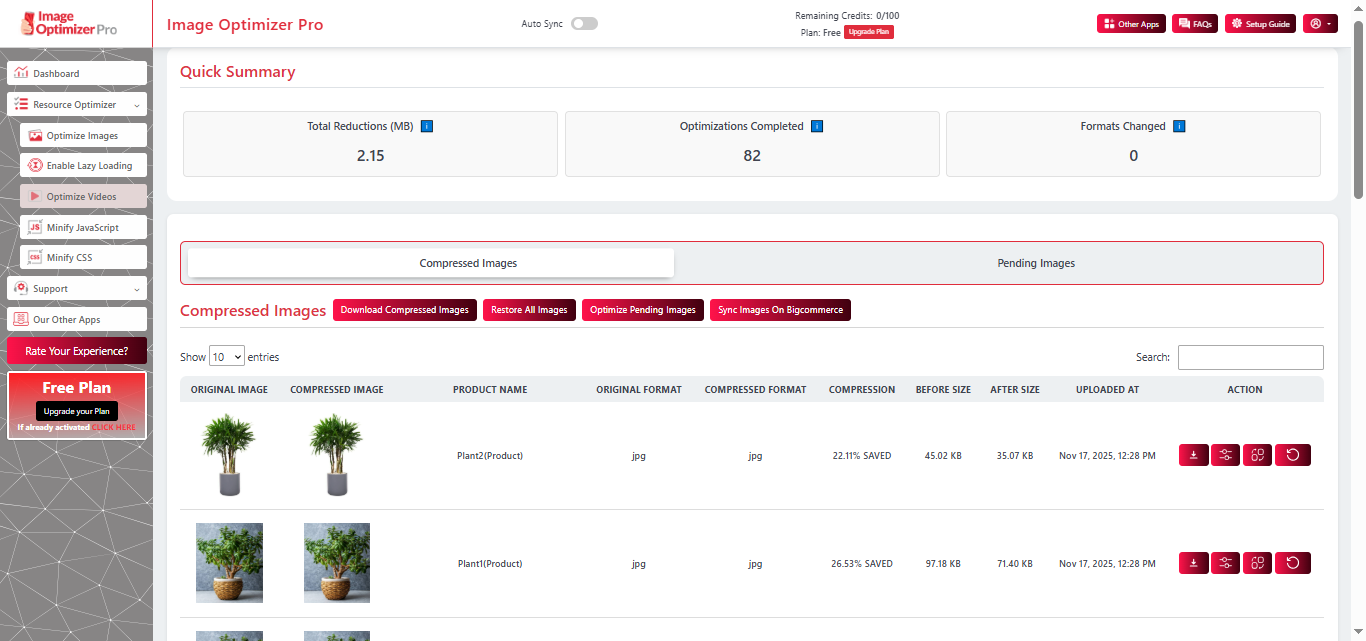
With Image Optimizer Pro, you can bulk optimize images designed specifically for BigCommerce.
There are two smart modes: Automatic Compression and Manual Compression
Option 1: Automatic Compression (Recommended)
Automatic mode is the simplest, fastest, and most reliable way for BigCommerce image compression
You can compress a whole image library in a single click, including product images, banners, thumbnails, category pictures, and blog images. The app analyzes your BigCommerce store, identifies unoptimized files, and applies intelligent compression that reduces file sizes without any visible loss of quality.
How it works:
- Install Image Optimizer Pro from the BigCommerce App.
- Go to the “Optimize Images” section in your dashboard.
- Click Run Optimization
Within minutes, your visuals are optimized for both desktop and mobile performance. This automation will keep your store fast at all times without needing manual effort every time you upload new content.
Option 2: Manual Compression
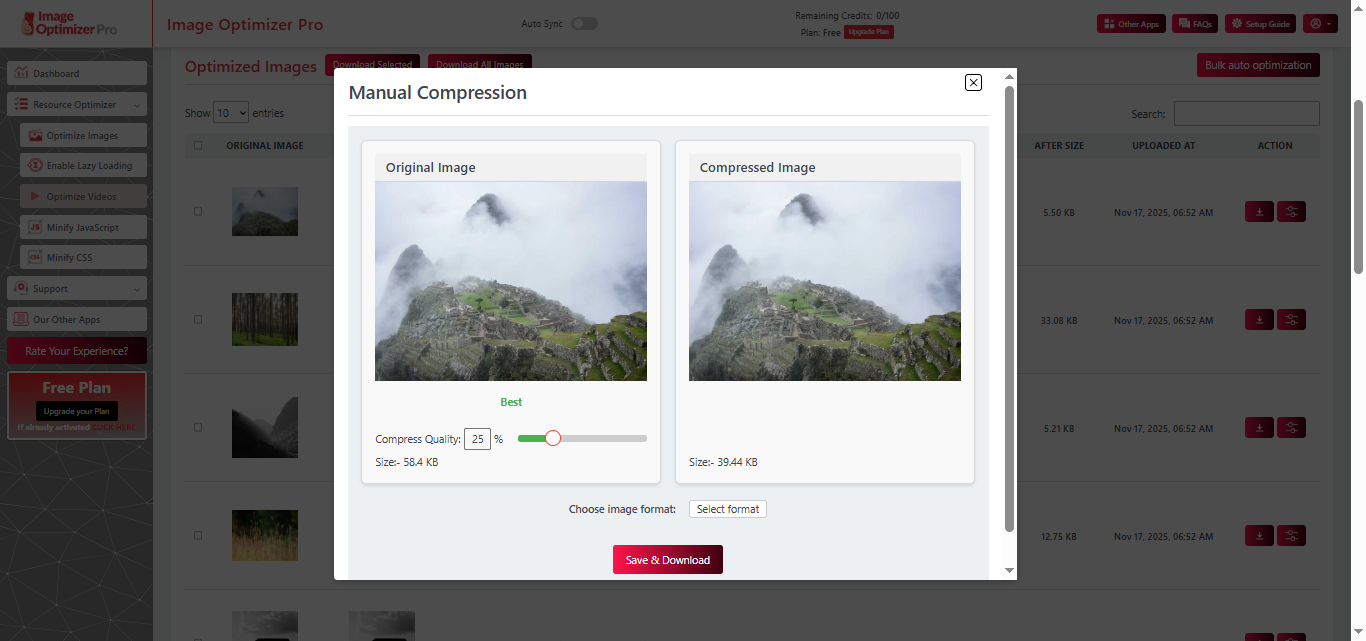
Image Optimizer Pro has manual compression that gives you more control over your images before publishing. You can:
- Adjust pixel dimensions to suit specific display needs.
- Reduce file weight while maintaining quality.
- Refine sharpness for the perfect visual balance.
Manual compression is ideal for stores that feature high-end visuals or unique creative displays that need fine-tuning. Even though this mode requires more time, every image meets the desired balance between clarity and speed.
3. Optimize File Names
Instead of generic names, such as IMG_1234.jpg, you can use descriptive, search engine optimized names such as black-leather-sneakers-bigcommerce.jpg. This helps search engines to understand your product images and boosts your visibility on Google images.
Keep your file names short and relevant. Avoid stuffing them with keywords, it may hamper your rankings. Always use dashes, not underscores, and never use filler terms such as “the” or “a” that don’t add SEO value.
4. Add Alt Text
All of the images are expected to have alt text, which are brief, descriptive phrases that explain what’s in the image. This not only enhances the accessibility of the visually impaired users, but also assists search engines in indexing your images adequately.
At least one keyword should be used in the alt text, though again, avoid overloading it with keywords. Use only the words that are relevant to the image, otherwise, search engines may penalize you.
5. Maintain Consistent Aspect Ratios
Combining horizontal and vertical images adds a cluttered appearance. Keep your image ratios the same (preferably 1:1 for product shots) to maintain a uniform grid layout.
6. Use the Right Resolution
High-resolution images are really awesome, but they can significantly slow down your page load times. For the web, the optimal is 72 DPI (dots per inch). It’s sharp enough for screens but doesn’t overload your page with unnecessary data.
Image Optimization Best Practices

Below are some of the expert-approved habits to ensure your image game is at the top:
- Stick to consistent lighting and background styles across all products.
- Aim to keep main product images between 100–250KB and thumbnails under 70KB.
- Enable browser caching to serve visitors with frequent repetitions.
- Regularly audit your image library, delete duplicates or outdated photos.
- Re-optimize images when you change your store’s theme or layout.
The Bottom Line
Image optimization goes beyond file size reduction but involves creating a smoother, quicker, and more professional shopping experience. The visual appearance of your store reflects your brand’s credibility.
Adhering to the standard BigCommerce image sizes, refining file properties, and using Image Optimizer Pro for both automatic and manual compression, you will be able to significantly improve the store’s speed, SEO, and customer satisfaction.
FAQs
Q1. Why are my BigCommerce product images taking too long to load?
Slow-loading images usually mean they’re too large or not properly compressed. Oversized files eat up bandwidth and delay page performance. By optimizing and resizing them with a tool like Image Optimizer Pro, you can reduce load times without losing visual quality.
Q2. How does image optimization impact BigCommerce SEO rankings?
Optimized images make your site faster, and search engines love speed. When your visuals load quickly and include proper alt text, it boosts user experience, lowers bounce rates, and improves your BigCommerce SEO rankings.
Q3. Does BigCommerce automatically optimize images?
BigCommerce serves resized versions but doesn’t compress images aggressively for performance. However, it does not automatically compress or resize images to their most optimal levels. You’ll need to optimize them using Image Optimizer Pro.
Q4. What happens if I upload uncompressed product images to BigCommerce?
Uncompressed images slow down your pages, frustrate visitors, and can hurt your SEO rankings. They also use more bandwidth, especially on mobile. Always optimize before uploading to keep your site fast and user-friendly.
Q5. Can optimizing images improve my BigCommerce mobile speed score?
Yes. Image optimization significantly improves your mobile speed score by reducing file size and ensuring faster loading on all devices. Quicker load times lead to better engagement and higher conversions.
Q6. How often should I optimize images on my BigCommerce store?
It’s a good practice to optimize images regularly, especially whenever you add new products or update your visuals. Over time, unoptimized uploads can accumulate and slow your site.
Q7. What’s the ideal image format for BigCommerce products?
Use JPEG for product photos, PNG for transparent graphics or logos. BigCommerce doesn’t natively serve WebP by default.
18 November, 2025
Leave a Comment
Ishan Makkar
He is a web performance specialist focused on image optimization and site speed. As the founder of Image Optimizer Pro, he helps businesses reduce image load times and improve Core Web Vitals. His work centers on delivering faster websites, better user experience, and measurable SEO gains without complex development.