
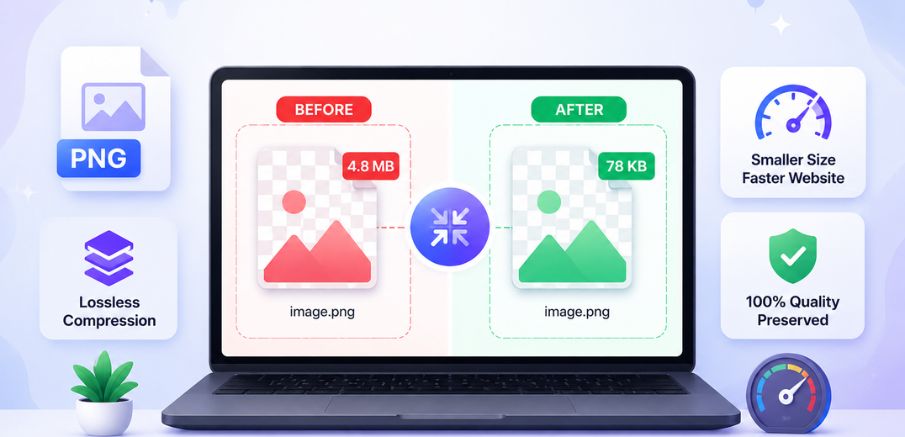
TL;DR: Compress PNG images without quality loss by resizing images properly, removing unnecessary metadata, using lossless compression, and optimizing transparency. Online PNG compression tools can further reduce file size while preserving image clarity and performance.
PNG images are widely used for logos, transparent graphics, screenshots, and e-commerce visuals because they preserve sharp details and clean edges. However, large PNG files can slow down webpages and affect Core Web Vitals. Learning how to compress PNG images without losing quality helps reduce file size while maintaining image clarity and improving website performance.
This guide explains how PNG compression works and the best ways to compress PNG images without losing quality for better website performance and SEO.
Best Ways to Compress PNG Images Without Losing Quality
There are two main ways to compress PNG images without reducing visual quality:
- Manual PNG optimization methods involve resizing images, removing metadata, reducing unnecessary colors, optimizing transparency, and using lossless compression techniques.
- Online PNG compression tools automatically optimize image files while preserving image clarity, sharp edges, and transparent backgrounds.
What Does PNG Compression Mean?
PNG compression refers to the process of making PNG image files smaller without noticeably changing how they look. Unlike traditional lossy image formats that permanently remove visual information, PNG uses a different method designed to preserve image accuracy.
This is why PNG remains one of the preferred formats for graphics that need sharp details and transparent backgrounds. Instead of degrading the image visually, PNG compression focuses on improving how image data is stored inside the file itself. A PNG image optimizer typically reduces file size by:
- Cleaning unnecessary metadata
- Simplifying color information
- Reorganizing image data more efficiently
- Removing redundant storage patterns
- Optimizing transparency layers
The goal is simple: create a lighter image file that still looks identical to the original version. Because PNG supports lossless compression, it is possible to reduce file size substantially while keeping text, edges, and graphics crisp. That is one reason PNG continues to be widely used despite newer image formats entering the market.
This format is especially useful for image types where visual precision matters, including brand logos, e-commerce product graphics, website icons, user interface elements, screenshots, infographics, and transparent overlays.
Why Are PNG Images So Large?
PNG files are larger because the format prioritizes image quality and transparency over aggressive compression. Unlike JPEG, which discards visual data to reduce file size, PNG preserves all pixel information.
This makes it excellent for crisp graphics but inefficient for large photographic images. Several factors contribute to oversized PNG files:
1. Lossless Data Storage
PNG uses lossless compression, which means it preserves every pixel and visual detail instead of permanently removing image data. While this helps maintain high-quality graphics and sharp edges, it also creates significantly larger file sizes compared to formats like JPEG or WebP.
2. Transparency Support
One of PNG’s biggest advantages is its ability to support transparent backgrounds through alpha transparency layers. However, storing transparency information requires additional image data, which naturally increases the overall file size.
3. High Color Depth
Many PNG images are exported with millions of colors, even when the graphic itself only uses a limited color range. This unnecessary color information adds extra weight to the file and makes the image larger than it actually needs to be.
4. Unoptimized Exports
Design software often exports PNGs with unnecessary metadata, embedded profiles, and oversized dimensions. A single uncompressed PNG hero image can easily exceed several megabytes, especially for e-commerce websites.
According to SpeedCurve, images account for roughly 60% of total page weight on many websites. That makes PNG file size reduction one of the fastest ways to improve loading speed.
Does PNG Compression Affect Image Quality?
Not always. When using lossless PNG compression, the image quality remains visually identical to the original. This is the key difference between:
| Compression Type | Quality Loss | Best Use Case |
|---|---|---|
| Lossless PNG compression | No visible loss | Logos, UI graphics, transparency |
| Lossy compression | Slight quality reduction | Photos and large decorative images |
Most modern PNG image optimizer tools use intelligent algorithms that reduce file size while preserving visual integrity. In practical terms, most users will never notice any difference between the original and optimized versions.
Steps to Compress PNG Images Without Losing Quality
Follow these practical PNG optimization steps to reduce file size while preserving image clarity, transparency, and overall visual quality.
Step 1: Resize the PNG Image
Before compression, resize the image to the exact dimensions needed on your website. Uploading oversized PNGs increases file size unnecessarily and slows down page loading.
To optimize dimensions properly:
- Resize images to their real display size
- Avoid exporting ultra-high-resolution graphics unless necessary
- Use responsive image dimensions for mobile devices
Step 2: Remove Unnecessary Metadata
PNG files often contain extra metadata such as editing history, color profiles, and camera information. Removing this hidden data helps reduce PNG file size without affecting appearance.
Step 3: Use Lossless PNG Compression
Lossless compression reduces PNG file size without visibly changing image quality. It works by optimizing how image data is stored while preserving sharp details and transparency.
Step 4: Reduce the Number of Colors
Logos, icons, and illustrations usually do not need millions of colors. Reducing color depth or using indexed color palettes can significantly compress PNG images while maintaining visual clarity.
Step 5: Optimize Transparency
Transparency layers can increase PNG file size. Optimizing transparency settings helps reduce unnecessary image data while keeping transparent backgrounds intact.
Step 6: Convert Large PNG Photos to WebP
For photographic images, WebP often delivers much smaller file sizes than PNG. Keep PNG for graphics and transparency, but use modern image formats like WebP and AVIF where possible for better performance.
Research and performance testing consistently show:
- WebP files are typically 25–35% smaller than JPEG at similar quality
- AVIF can reduce file size even further compared to WebP
Step 7: Check Final Image Quality
After compression, compare the optimized image with the original to ensure text, edges, colors, and transparency still appear sharp and clean.
How to Compress PNG Images Online?
Online PNG compression tools make it easy to reduce file size without installing software. You can easily compress PNG images online using tools like Image Optimizer Pro, which helps reduce PNG file size while preserving image quality and transparency.
Step 1: Upload Your PNG Images
Upload one or multiple PNG files to the online compression tool using drag-and-drop or manual upload.
Step 2: Select Compression Settings
Choose lossless PNG compression to maintain image quality while reducing file size. Some tools also allow metadata removal and color optimization.
Step 3: Start PNG Compression
Run the compression process. The tool will automatically optimize image data, transparency layers, and storage structure.
Step 4: Preview the Optimized PNG
Compare the compressed PNG with the original image to ensure quality remains visually identical.
Step 5: Download the Compressed Images
Download the optimized PNG files and upload them to your website for faster loading speeds, better Core Web Vitals, and improved user experience.
This image compression tool helps compress PNG images quickly while preserving image quality and transparency.
PNG vs JPEG vs WebP: Which Image Format Is Best?
Choosing the best image file format depends on the content itself.
| Format | Best For | Strengths | Weaknesses |
|---|---|---|---|
| PNG | Logos, transparency, graphics | Lossless quality | Large file sizes |
| JPEG | Photography | Small files | No transparency |
| WebP | Modern web images | Smaller files + transparency | Older workflow compatibility issues |
| AVIF | Next-gen optimization | Excellent compression | Slower encoding |
JPEG vs PNG
- JPEG works better for photographs because it uses lossy compression.
- PNG works better for graphics that require sharp edges and transparency.
WebP vs PNG
WebP has become one of the best all-around web formats because it supports:
- Transparency
- Smaller file sizes
- Strong browser compatibility
Recent benchmarks show WebP can outperform PNG significantly for many web graphics. Still, many designers continue using PNG during editing workflows because it preserves maximum quality.
How PNG Compression Improves Website Speed
Image optimization directly affects page performance. Large PNG files increase load time, Largest Contentful Paint (LCP), bandwidth consumption, and mobile data usage. Optimized images improve:
- User experience
- Bounce rates
- SEO performance
- Conversion rates
Images are often one of the largest elements on a webpage, which means even moderate PNG file size reduction can noticeably improve site speed and performance. For e-commerce websites, blogs, and content-heavy platforms, faster-loading pages typically create a smoother browsing experience and help users access content more efficiently.
Compress Images in Bulk for Faster Workflows
Manually optimizing hundreds of images is unrealistic for large websites. That is why bulk image compression tools have become essential. Bulk PNG compression allows you to:
- Compress large PNG files automatically
- Optimize entire media libraries
- Standardize image settings
- Reduce workflow time
This is especially useful for e-commerce stores, blogs, photography websites, SaaS platforms, and agencies managing multiple sites. Bulk image compression also helps maintain consistent optimization standards across all uploaded assets.
Common Mistakes That Make PNG Files Bigger
Many PNG files become unnecessarily large because of avoidable optimization mistakes. Fixing these issues can help reduce PNG file size and improve website performance.
Exporting Everything as PNG
PNG is not ideal for every image type, especially photographs. Formats like JPEG or WebP are usually more efficient for photo-heavy content.
Using Maximum Resolution Everywhere
Uploading oversized images adds unnecessary file weight. Resize PNG images based on how they will actually appear on the website.
Ignoring Transparency Needs
If an image does not need transparency, PNG may not be the best option. Other formats can often deliver smaller file sizes.
Uploading Unoptimized Design Exports
Design software exports often contain extra metadata and inefficient settings. Optimizing images before upload helps reduce unnecessary bloat.
Skipping Modern Formats
Formats like WebP and AVIF usually provide better compression than PNG. Using modern formats where possible can improve page speed significantly.
Conclusion
PNG remains one of the best image formats for transparency and sharp graphics, but unoptimized files can slow down your website. By using lossless PNG compression, resizing images properly, and adopting modern optimization practices, you can reduce PNG file size without sacrificing quality while improving page speed, SEO performance, and overall user experience.
Frequently Asked Questions
Q1. Why are PNG images so large?
Q2. Does PNG compression affect image quality?
Q3. What is the best tool to compress PNG images?
Q4. Can PNG compression improve website speed?
Q5. What is the best image format for transparent ecommerce graphics?
21 May, 2026
Leave a Comment
Ishan Makkar
He is a web performance specialist focused on image optimization and site speed. As the founder of Image Optimizer Pro, he helps businesses reduce image load times and improve Core Web Vitals. His work centers on delivering faster websites, better user experience, and measurable SEO gains without complex development.