
TL;DR: Image file formats impact website performance, visual quality, and compatibility. Explore which image format is best for different purposes, providing you with the perfect balance of compression and clarity. Know about vector vs raster image file types. Understanding each format helps you pick the right one for speed, quality, and workflow needs.
High-quality images are the heart of any website. But choosing the right image file formats for different web purposes has always been a confusing decision.
Whether you’re a content creator, web developer, or designer, understanding the different types of image formats, from legacy JPEGs to next-generation WebP and AVIF, to vector-based SVG, can help you make informed decisions.
This guide unpacks 15 image file formats and their right usage, helping you choose the right one for your website.
What Are Image File Formats and Why Do They Matter?
At its core, an image file format (or image file type) describes how visual information is encoded, stored, and compressed on disk or over the web. Each format uses different algorithms to represent color, detail, and transparency, and these decisions influence:
1. File Size: Smaller images mean faster page loads and reduced bandwidth.
2. Image Quality: Some formats discard data to shrink size; others preserve every pixel.
3. Transparency & Animation: Not all formats support alpha channels or multiple frames.
4. Compatibility: How well a format is supported across browsers, devices, and software.
5. Use-Case Suitability: Whether the image is for web, print, or design.
Using the best image file formats is therefore crucial. The right choice can dramatically improve page speed, reduce costs, and deliver a better visual experience.
Vector vs Raster Image File Types
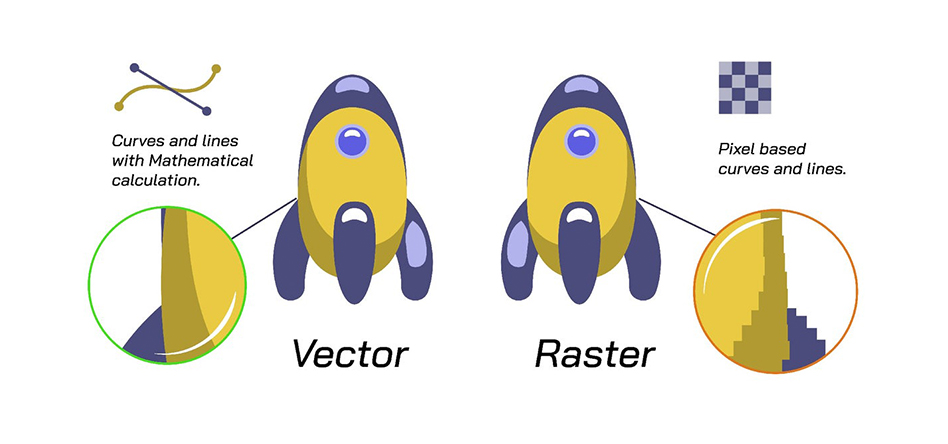
One of the most fundamental distinctions in image file types is between raster and vector formats.
- Raster images are pixel-based. Every image is composed of a grid of colored dots (pixels). Formats like JPEG, PNG, WebP, AVIF, TIFF, and BMP belong here. Because they are resolution-bound, scaling a raster image up too much results in blurring or pixelation.
- Vector images are based on mathematical descriptions: lines, curves, and shapes defined using algorithms. Formats like SVG, EPS, AI, and sometimes PDF use vector representation. These files scale infinitely without loss of clarity, a major advantage for icons, logos, and UI elements.
When choosing image file formats, knowing the difference between vector and raster image file types helps you decide whether you need scalability and crispness (vector) or detailed colors, gradients, and photographic realism are more important (raster). The best image format should have compatibility, clarity, and scalability. These are the features of a graphic image, so choose your image type accordingly.
Image File Formats Explained: Use Cases, Pros, and Cons
Here, we deep-dive into a variety of popular image file types, explaining how each works, their benefits and limitations, and where they are best used.
1. JPEG or JPG – (Joint Photographic Experts Group)
JPEG is one of the most widely used raster image file formats designed for photographs and complex images. It uses lossy compression, which reduces file size by permanently removing data that the human eye is less likely to notice. With a highly convertible compression type, it is among the most shareable image types, helping to boost web speed significantly. Tools like Image Optimizer Pro can enhance JPEG compression levels, as it gives you the maximum possible compression without losing the quality.
Advantages and Disadvantages
| Advantages | Disadvantages |
|---|---|
|
|
Best Uses of JPEG
- Web photos and blog images
- Social media uploads
- Email-friendly compressed pictures
- Photography where small file size matters
2. PDF – (Portable Document Format)
PDF is a universal document and image format widely used for sharing, printing, and archiving. It supports vector graphics, images, text, fonts, annotations, and interactive elements like forms. PDFs preserve layouts across devices and operating systems, making them ideal for publications, e-books, presentations, and print-ready files. They can also be optimized for the web or compressed without losing quality, which contributes to their versatility.
Advantages and Disadvantages
| Advantages | Disadvantages |
|---|---|
|
|
Best Uses of PDF
- Print-ready designs
- Sharing vector artwork
- Flyers, brochures, posters
3. WebP – (Web Picture Format)
WebP is a modern image compression format developed by Google. It supports lossy, lossless, transparency, and animation, making it a replacement for JPEG, PNG, and GIF. Studies from Google show WebP reduces file sizes by 25–34% compared to JPEG and PNG while preserving similar quality.
Advantages and Disadvantages
| Advantages | Disadvantages |
|---|---|
|
|
Best Uses of WebP
- Website photos for speed optimization
- Transparent graphics replacing PNG
- Animated graphics replacing GIF
4. PNG – (Portable Network Graphics)
PNG is a lossless image compression format, preserving every pixel exactly. It supports alpha transparency, making it a preferred choice for UI elements, icons, and graphics. PNG-24 supports millions of colors, while PNG-8 is limited to 256 colors.
Advantages and Disadvantages
| Advantages | Disadvantages |
|---|---|
|
|
Best Uses of PNG
- Logos, icons, and transparent-background graphics
- Screenshots, infographics, charts
- High-quality UI elements
5. GIF – (Graphics Interchange Format)
GIF is a legacy image format supporting 256 colors, lossless compression, and simple frame-by-frame animation. Due to color limits, it’s not suitable for photos but continues to be widely used for short looping animations.
Advantages and Disadvantages
| Advantages | Disadvantages |
|---|---|
|
|
Best Uses of GIF
- Short looping animations
- Simple icons and line art
- Meme formats
6. TIFF – (Tagged Image File Format)
TIFF is a high-quality image format widely used in printing, medical imaging, and professional photography. It supports lossless compression and layers, making it extremely accurate but very large in size. You can use this image format for storing graphics for publication, plus it’s an adaptable image format. A single TIFF can easily adapt additional data like bonus images and header tags.
Advantages and Disadvantages
| Advantages | Disadvantages |
|---|---|
|
|
Best Uses of TIFF
- Professional printing
- Archiving high-resolution images
- Scanned documents
- Publishing workflows
7. SVG – (Scalable Vector Graphics)
SVG is a vector image format, meaning it uses mathematical paths instead of pixels. It scales infinitely without losing quality, making it ideal for logos and icons. SVG files are lightweight, editable using code, and compatible with modern browsers, making them highly suitable for responsive web design. They also support animations, interactivity, and accessibility features, which further enhance their value for UI/UX elements.
Advantages and Disadvantages
| Advantages | Disadvantages |
|---|---|
|
|
Best Uses of SVG
- Logos and icons
- UI/UX graphics
- Vector illustrations
- Responsive web design
8. RAW Image File Types
RAW image files store unprocessed sensor data directly from digital cameras. Formats vary by manufacturer: Canon (CR2/CR3), Nikon (NEF), Sony (ARW), Olympus (ORF), Fujifilm (RAF), and more. RAW files contain maximum detail, color information, and dynamic range, allowing extensive flexibility during post-processing.
They are preferred by photographers because they enable adjustments to exposure, white balance, shadows, highlights, and noise without significant quality loss. However, RAW files must be edited and exported to formats like JPEG or TIFF before sharing.
Advantages and Disadvantages
| Advantages | Disadvantages |
|---|---|
|
|
Best Uses of RAW Images
- Professional photography
- High-end image editing
- Archival-quality image storage
9. BMP – (Bitmap Image Format)
BMP or bitmap is a simple, raw raster format developed by Microsoft. It stores pixel data uncompressed, making files extremely large but visually accurate. It presents rich details with wide color ranges, making it ideal for professional designs, high-fidelity editing, and applications where size can be sacrificed for quality and details.
Advantages and Disadvantages
| Advantages | Disadvantages |
|---|---|
|
|
Best Uses of BMP
- Windows-based imaging systems
- Raw image editing
- Offline high-quality storage
10. HEIF – (High Efficiency Image File Format)
HEIF is a modern image file type based on the HEVC codec. Used by iPhones since iOS 11, HEIF offers higher quality at about half the size of JPEG. Thus, it’s the best alternative to JPEG. Providing enhanced quality over JPEG, it represents thousands of colors with its 16-bit color depth efficiency.
Advantages and Disadvantages
| Advantages | Disadvantages |
|---|---|
|
|
Best Uses of HEIF
- Smartphone photography
- High-quality mobile images
- Storage-efficient photo libraries
11. INDD – (Adobe InDesign Document)
INDD is Adobe InDesign’s project format used for building complex page layouts such as magazines, brochures, catalogs, and books. It stores text frames, styles, linked assets, page settings, grids, and interactive elements. INDD files are part of professional publishing pipelines because they support multi-page design, precise typography, and integration with Adobe Illustrator and Photoshop.
Advantages and Disadvantages
| Advantages | Disadvantages |
|---|---|
|
|
Best Uses of INDD
- Magazines
- Brochures
- Books and multi-page layouts
12. EPS – (Encapsulated PostScript)
EPS is a professional vector file format used for print, logos, and scalable graphics. Although older, it remains widely supported by design and publishing software. EPS files can embed both vector and raster data, giving them flexibility in print workflows. They are often preferred in traditional printing environments because they maintain precision, compatibility with PostScript printers, and predictable output quality.
Advantages and Disadvantages
| Advantages | Disadvantages |
|---|---|
|
|
Best Uses of EPS
- Print-ready vector artwork
- Logos, business cards, and branding
- Professional illustrations
13. PSD – (Photoshop Document)
PSD is Adobe Photoshop’s native format and supports layers, masks, channels, text, effects, and extensive editing information. Designers use PSD files during the creation process because they preserve every editable component. Although not intended for final distribution, PSDs are essential for image retouching, digital painting, composite design, and preparing assets for export into other formats like JPEG, PNG, or WebP.
Advantages and Disadvantages
| Advantages | Disadvantages |
|---|---|
|
|
Best Uses of PSD
- Advanced image editing
- Design workflows
- Multi-layered compositions
14. AI – (Adobe Illustrator Artwork)
AI is Adobe Illustrator’s vector file format designed for high-quality scalable graphics such as logos, branding elements, and print layouts. AI files maintain editable vector paths, artboards, text, gradients, and advanced effects. They are widely accepted in professional printing and branding workflows. AI files can be exported into formats like SVG, EPS, and PDF, making them versatile for both digital and print use cases.
Advantages and Disadvantages
| Advantages | Disadvantages |
|---|---|
|
|
Best Uses of AI
- Logo design
- Vector illustrations
- Print graphics
15. XCF – (eXperimental Computing Facility)
XCF is the native file format for GIMP (GNU Image Manipulation Program). Like PSD, it stores layers, paths, channels, and editable components. XCF files ensure that all editing information remains intact, making them essential during design or retouching workflows in GIMP. However, they are not suitable for sharing or publishing and must be exported to formats like PNG or JPEG for final output.
Advantages and Disadvantages
| Advantages | Disadvantages |
|---|---|
|
|
Best Uses of XCF
- GIMP projects
- Open-source design workflows
- Editable layered files
What Is the Highest Image Quality Format for Your Website?

If “highest quality” refers to max visual fidelity per kilobyte, AVIF currently leads, thanks to its advanced compression algorithms, HDR support, 10-bit color, and efficient handling of transparency. It consistently produces smaller files than WebP and JPEG while maintaining superior clarity.
However, encoding AVIF can be slower, and some older browsers still lack full support. For this reason, many developers choose WebP as a practical balance of excellent quality, fast encoding, and near-universal browser compatibility, making it a strong all-purpose choice for most websites.
Conclusion
Choosing the right image file formats isn’t just about what looks good — it’s about how images are delivered, stored, and processed. The modern web benefits greatly from efficient compression: AVIF and WebP let us serve high-quality visuals with far smaller file sizes, significantly boosting performance. Traditional formats like JPEG and PNG still have their place, especially for compatibility and specific use-cases (e.g., transparency). Meanwhile, vector formats like SVG, EPS, or AI provide scalable crispness that raster images can’t match.
By understanding types of image formats and knowing when to use raster vs vector, you can make smarter, more informed decisions. That means faster sites, better visuals, and a more optimized user experience.
FAQs
Q1: What is the best image format for websites?
Q2: What is the difference between image file types and image formats?
Q3: Which image format has the highest quality?
Q4: What is the smallest image file format?
Q5: Is AVIF better than WebP?
Q6: Which image format is best for transparent backgrounds?
22 December, 2025
Leave a Comment
Ishan Makkar
He is a web performance specialist focused on image optimization and site speed. As the founder of Image Optimizer Pro, he helps businesses reduce image load times and improve Core Web Vitals. His work centers on delivering faster websites, better user experience, and measurable SEO gains without complex development.