

TL;DR: Optimizing images on Squarespace is key to faster loading, better SEO, and an appealing design, improving engagement. Compress images, use the right dimensions and formats, and balance quality with file size for better website performance. Find the right tips and tools for Squarespace image compression in this guide and retain more traffic on your website.
Creating a visually stunning Squarespace website is about more than just uploading aesthetically pleasing images; it’s about finding the right balance between image quality and file size. Oversized, high-resolution images can make your site look sharp but slow, while overly compressed ones can appear blurry and unprofessional.
The key is smart Squarespace image optimization, reducing file weight without losing clarity. When done right, your pages load faster, rank higher, and deliver a seamless experience across every device.
This guide will help you with the best practices to optimize your images on Squarespace for boosting the speed and SEO of your website.
What is Image Optimization?
Image Optimization is the process of preparing and delivering image files in a way that balances visual quality with minimal file size for efficient loading. For Squarespace specifically, image optimization includes:
- Compressing images to the best possible minimal size
- Resizing images to appropriate dimensions so you’re not uploading large files,
- Choosing the right image format (JPG, PNG, WebP) for the best quality,
- Applying responsive delivery so mobile users aren’t loaded with full-desktop files,
- Adding meaningful filenames and alt text so search engines and accessibility features are satisfied.
In simple terms, you have to optimize images for speed, SEO, and device performance. In the context of Squarespace, this is sometimes overlooked because the platform does some work for you. But relying solely on Squarespace’s default image optimization may still leave room for improvement.
Why Image Optimization Matters for Your Squarespace Store

Images are the key part of any website or store, whether you are running it on Squarespace or any other platform. They directly affect your website’s appearance, speed, and conversions. Here’s why image optimization matters for Squarespace:
1. Website Speed
Large image files are one of the most common culprits when a Squarespace page takes too long to load or when the Largest Contentful Paint (LCP) on mobile is very high. The number and size of images on a particular page will affect your website’s load time, which may affect your traffic and cause people to leave your site in frustration.
2. Better SEO and Rankings
Speed is a ranking factor with Google. A slow-loading site means bad UX, which search engines will penalize. Heavy, unoptimized, and unnamed images can affect your search engine rankings.
3. For Better Performance on Mobile
Mobile is a key source for most of the traffic nowadays. Optimizing your images for suitable dimensions, file size, and format will ensure a responsive image delivery on mobile devices.
Proven Tips for Squarespace Image Optimization

Here are the practical tips you can implement to optimize your Squarespace images in the right way:
1. Compress Squarespace Images
Even a few uncompressed images can significantly slow down your Squarespace website. While Squarespace does apply some automatic compression on upload, you should not rely solely on it.
There are two ways for Squarespace image compression.
Option 1: Automatic Compression
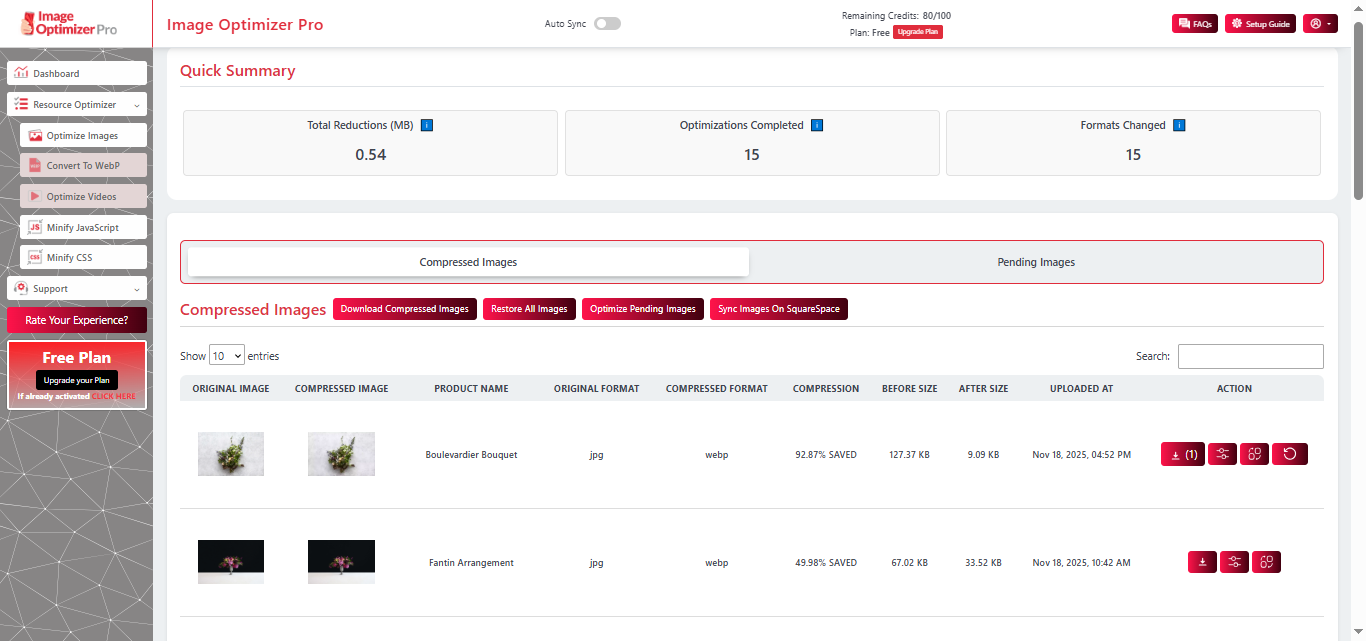
Optimizing images on Squarespace automatically is the simplest way to apply. With Image Optimizer Pro, you can compress thousands of your store’s images in one go, compressing up to 80% even without losing quality. Plus, it automatically compresses the new images you upload to your Squarespace store.
Simply sign up for an Image Optimizer Pro account to get started. Select between Manual Optimization and Automatic Optimization based on your preference. This tool will instantly scan and optimize all your product images, boosting your website speed.
Option 2: Manual Image Compression
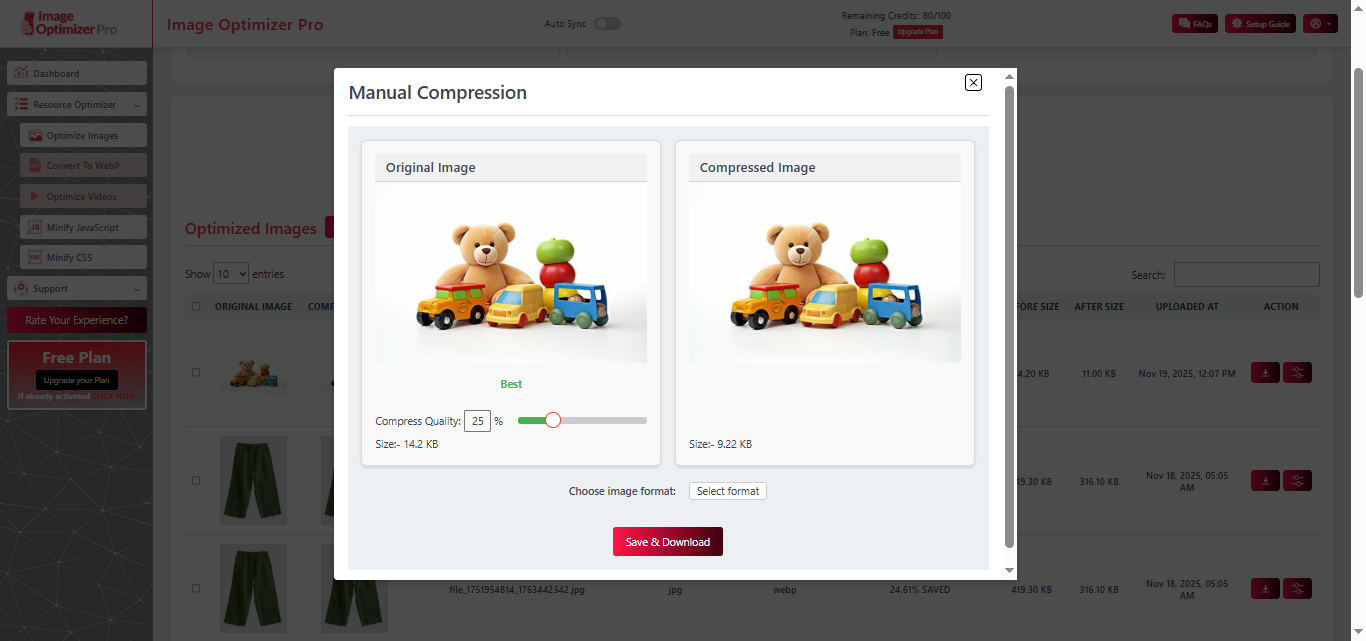
For compressing your images manually, you can use the manual optimization feature of Image Optimizer Pro for Squarespace. This will allow you to optimize each image manually and replace the original images with the optimized versions.
However, manual compression is time-consuming and not suitable for a store with thousands of images. But it gives you more control and precision over each image you compress, providing you with the desired image quality for specific images.
2. Resize Images with the Right Dimensions
Before uploading, make sure your images match the dimensions Squarespace actually needs. Proper Squarespace image size optimization keeps visuals crisp while reducing file weight, helping your pages load faster without losing clarity. Here’s a quick guide to the best dimensions for different image types on Squarespace:
| Image Type | Recommended Dimensions | Recommended Image Size |
|---|---|---|
| Background Images | 2000-2500 pixels wide | Under 500 KB |
| Hero Images | 2000-2500 pixels wide | Under 500 KB |
| Product Images | 1500-2000 pixels wide | 100-400 KB |
| Blog Images | 500-1500 pixels wide | 20-300 KB |
| Logo Images | 160-600 pixels | Minimal PNG or JPG (as many guidelines treat logos separately) |
Try to keep your image sizes minimal and follow the Seospace latest image size guide for additional recommendations.
Here are some rules of thumb for Squarespace:
- For banner images or large images: aim for under ~500 KB.
- For medium website images: width ~500-1500 px, size between ~100-400 KB.
- For blog screenshots or small images: width ~500 px, size ~10-300 KB.
- Use JPG where you can (because they compress better) and reserve PNG for images with transparency.
3. Choose the Right Image Formats
In the context of Squarespace image optimization:
- JPG (or JPEG) is ideal for photographs, maintaining good compression and visual quality.
- PNG is good when you need transparency (logos, icons). But PNGs tend to be larger.
- WebP (and other next-gen formats) are increasingly supported and offer better compression for equivalent quality.
- While Squarespace may support WebP in certain templates or via custom code, you should check template compatibility and whether custom upload in WebP is suitable.
4. Balance the Quality and Image Size
Compression and resizing go hand-in-hand with quality. The goal is to make the file size as small as possible without losing quality or pixelating the image.
Decide how the image will be used (hero banner vs tiny thumbnail) and choose a level of quality/compression accordingly. If a hero image spans the full width of a high-resolution screen, you can accept a slightly higher size. If it’s a small thumbnail, you should be more precise.
5. Use Responsive Images
Make sure that images work well on all devices and viewport sizes. For example, one user in the Squarespace forum noted that inline images are served in different sizes depending on the screen size, which is great for mobile speed. Squarespace creates different versions of uploaded images for various widths. Upload a suitable-sized image, ensure blocks use proper image dimensions, and check mobile layout.
6. Use Image Names and Alt Text
Don’t neglect the “behind-the-scenes” details like file names and alt text, as they are important from the SEO perspective. Rename files to something descriptive and keyword-rich (instead of IMG_9543.jpg) so Google can understand what the image is.
Also, adding alt text helps accessibility and SEO. It is the short descriptive name that shows to the user if the image fails to load. If you don’t add alt text, Squarespace may pull from the filename, but make sure the filename is meaningful. While emphasizing SEO details, Squarespace image compression is no exception.
7. Image Audits for Analysing Performance
After you’ve done all the steps above, you should audit to see whether your image-optimization efforts paid off. Here are the things to check:
- Test your Squarespace website for speed (e.g., with Google PageSpeed Insights).
- See if the Largest Contentful Paint (LCP) improved, if mobile load times got faster.
- Check image file sizes, dimensions, and format usage across your site. Are any images still out of size for Squarespace?
- Review conversion or engagement performance: did slower images correlate with higher bounce?
- Regularly re-audit as content grows: new galleries, new blog posts can sneak in large, unoptimized images.
If you are still not satisfied, you can use advanced tools like Website Speedy for automatic optimization support. It will significantly enhance your website speed, even without much technical knowledge.
Advanced Tips to Optimize Images on Squarespace

These are some tips you can implement beyond the basics for Squarespace Image optimization:
- Enable lazy-loading for images (though Squarespace handles some of this, check your template and whether images below the fold are deferred).
- Consider using next-gen formats (WebP, AVIF) where supported and deliver a smaller file size with good quality. The academic research shows WebP can reduce load time significantly.
- Use a Content Delivery Network (CDN). Squarespace uses a built-in CDN, but ensuring images are efficiently served matters.
- Periodically purge oversized images: For instance, older blog posts may have large, unoptimized hero images; replace them with resized/compressed versions.
- Use image optimization tools or extensions (when allowed) to automate ongoing compression, naming, and format conversion.
- Monitor metrics such as mobile load time, bounce rate, conversion rate, and link these with image load performance.
Conclusion
As a Squarespace owner, you know the value of first impressions. Visually compelling, fast-loading websites drive engagement, build credibility, and convert. For any site built on Squarespace, mastering Squarespace image optimization is non-negotiable.
From image compression to choosing the right dimensions for Squarespace, selecting optimal formats, ensuring responsiveness, naming and tagging correctly, to auditing performance, every step counts.
If you neglect image optimization, you risk slower load times, frustrated visitors, higher bounce, poorer SEO, and that undermines all your website content, design, and strategy. Fix the images, and you’ll see ripple benefits across speed, SEO, design, and mobile performance.
FAQs
Q1 – What is the best image size for Squarespace?
Q2 – Does Squarespace automatically optimize images?
Q3 – What image format is best for Squarespace?
Q4 – How do I optimize images on Squarespace for faster loading?
- Resize your original image to appropriate dimensions (not overly large)
- Compress the image file size (aim for <500 KB, ideally much lower depending on placement)
- Use the correct format (JPG/PNG/WebP)
- Name the file meaningfully and add alt text.
- Upload to Squarespace and ensure responsive/image block settings are correct.
- Audit load performance afterwards (especially on mobile) and replace any large/unoptimized images.
Q5 – How many images should I have on a page, and how does that affect optimization?
24 November, 2025
Leave a Comment
Ishan Makkar
He is a web performance specialist focused on image optimization and site speed. As the founder of Image Optimizer Pro, he helps businesses reduce image load times and improve Core Web Vitals. His work centers on delivering faster websites, better user experience, and measurable SEO gains without complex development.